PayPal to QuickBooks Integration: How to Set it Up for Accounting
Written by: Amy Crooymans
February 18, 2026
For ecommerce sellers, offering customers multiple payment options is a no-brainer. PayPal is one of the most popular, with over 35 million active merchant accounts. But while PayPal gives your buyers more flexibility, it can also create more work for your bookkeeping.
If you use PayPal to make or receive payments, especially in multiple currencies, you’re probably already familiar with the accounting challenges: reconciling PayPal statements to your Shopify store, separating sales from fees and refunds, wading through hundreds or thousands of transactions, and handling currency conversions cleanly in your books.
Integrating PayPal with QuickBooks Online (QBO) can solve those problems, giving you accurate books, faster reconciliations, and clearer tax reporting. This guide walks through your integration options, the trade-offs between them, and what to test, so you can find the right solution for your ecommerce business.
Key takeaways
- You can connect PayPal to QBO via an accounting automation tool that posts summaries (recommended for higher volumes), a data-sync app that posts individual orders, QuickBooks’ native connector, or manual CSV imports.
- Ecommerce accounting automation apps (like A2X) post summarized statements that map sales, fees, refunds, and taxes to QBO, which makes bank reconciliation simple.
- If you want individual transaction-level records in QBO, a data-sync app might be a better fit, but it creates far more lines in QBO and can overload your ledger.
What are the challenges of reconciling PayPal in QuickBooks?
Reconciling PayPal in QuickBooks can quickly become complicated, especially when timing, currency, and high transaction volumes come into play. Some of the most common challenges include:
- Currency conversions – PayPal may hold funds in one currency but convert on payout or withdrawal, creating FX gains/losses that need accounting.
- Duplication risk – If you sync both Shopify and PayPal to QBO, you may accidentally record the same income twice.
- Timing differences – Shopify records the sale at checkout; PayPal cash may land days later, affecting both accrual and cash reporting.
- Refund mismatches – Partial or delayed refunds are common and often hard to match against original sales.
- Tax categorization gaps – PayPal often shows tax amounts but doesn’t assign them to the right jurisdictions.
- Held funds and chargebacks – These represent potential liabilities or expenses and need to be tracked carefully.
Get a step-by-step guide for reconciling PayPal in QuickBooks Online here.
Does PayPal integrate with QuickBooks?
Yes, PayPal integrates with QuickBooks Online, and there are a few different ways to do it.
PayPal transaction data can be pulled automatically into QBO using one of three tools:
- An ecommerce accounting automation app that summarizes your PayPal payouts (such as A2X)
- A data-sync app that imports individual orders and payments, or
- QuickBooks’ native PayPal connector
There’s also a fourth option: manually exporting your PayPal Summary Statement and creating journal entries yourself in QuickBooks. That approach is possible, but usually only practical for low-volume sellers.
Each method has its pros and cons, depending on what level of detail you want in QBO, how many PayPal transactions you process, and how you use PayPal, whether it’s just as a Shopify processor or as a more general-purpose payment platform handling a variety of transaction types.
Other points to consider include whether you want a paid or free solution, how automated the process should be, and how much time you’re willing to spend investigating missing transactions or reconciling mismatches at the end of the month.
Why integrate PayPal and QuickBooks?
Manual bookkeeping creates unnecessary work and real risk. It’s easy to miss PayPal fees, misclassify taxes, or lose hours trying to reconcile deposits in your bank feed to individual transactions in PayPal.
An integration helps by automating all of that. It classifies your PayPal sales, separates out taxes, fees, and refunds, and posts clean, categorized entries that reconcile directly to your payouts.
This not only saves time, especially at month-end, but also gives you confidence in your financial reports, audit trail, and tax filings.
Signs you might need an integration for PayPal into QuickBooks
You should consider integrating PayPal with QBO if any of the following apply:
- PayPal produces more than a few dozen transactions per month
- Reconciliation takes your bookkeeper longer each month than you’d like
- You sell in multiple currencies
- Your accountant requests payout-level statements rather than thousands of raw transactions
Key considerations before choosing a solution
Decide early whether QBO should hold every order (order-level) or act as the system of record for financials only (summarized payouts).
You might think you want every transaction in QuickBooks, but for month-end sanity, clean reconciliations, and faster reporting, it’s often worth rethinking how much detail you actually need.
Another key consideration is how much time you’re prepared to spend on your PayPal accounting each month, and finally, what is your tolerance for reconciliation? Some tools might get you part of the way there, but you’re left with unexplained balances in clearing accounts at month-end, which you have to investigate and account for.
Also, plan for which transaction types you need in QBO (sales, shipping, tax, refunds, fees, chargebacks), whether you need per-currency statements and gains/losses tracking, and how much customization or rule-based mapping you require.
PayPal and Shopify
It’s very common to use PayPal as a payment method on your Shopify store. But it also creates a unique accounting challenge:
- Shopify and PayPal each handle different parts of the transaction.
- PayPal then receives the funds, deducts processing fees, and holds the net amount in your PayPal account.
- You then receive the funds from PayPal either automatically or manually, sending them to your bank account.
The problem is that Shopify and PayPal don’t talk to each other. Each platform records only part of the picture, and if you try to bring both into QuickBooks without coordination, you risk double-counting income, missing fees, or losing track of what’s actually been deposited in your bank.
If you’re using PayPal on your Shopify store, it’s important to also consider how this will work as part of your PayPal to QuickBooks integration.
How do I integrate PayPal with QuickBooks?
There are four ways to integrate PayPal with QuickBooks:
- An ecommerce accounting automation app (such as A2X)
- Data sync app
- QuickBooks’ PayPal Connector
- Manual data entry
There are a few steps to integrating PayPal with QuickBooks. You need to choose a type of connector, prepare QBO accounts, connect tools, map categories, and then test and reconcile.
Let’s start with choosing a connector type. Below are the practical options and a real setup example using a reconciling tool.
Option 1: Ecommerce accounting automation app (such as A2X)
What is a PayPal to QuickBooks ecommerce accounting automation app?
A2X is ecommerce accounting software that connects to your PayPal account, imports your transaction data, and creates daily summaries of activity, including payments received, payments sent, fees, Shopify deposits, transfers/currency conversions, and all transactions that occur on PayPal. These summaries are posted to QuickBooks Online as a single journal entry per day, per currency, rather than posting every individual PayPal transaction.
Each line in the journal is mapped to a specific account: sales, fees, refunds, taxes, shipping, and more. So instead of trying to reconcile each transaction, you’re matching a clean, categorized summary that reflects your true PayPal activity.
If you use PayPal alongside Shopify, A2X gives you the full picture. You’ll see the summary of your Shopify transactions (including sales, fees, discounts, shipping, and returns), the payment received by PayPal from Shopify, the fees PayPal charged, and the withdrawal from PayPal to your bank account, all clearly separated and posted to the right accounts.
A note on A2X for PayPal:
Unlike some other A2X integrations (such as Shopify or Amazon), A2X for PayPal does not group transactions by payout. Instead, it creates daily summaries. This gives you a more consistent, time-aligned view of your PayPal activity and a smoother reconciliation workflow, especially when payouts from PayPal happen on an irregular basis.
Watch: How to Integrate PayPal with QuickBooks Online Using A2X
If you're an ecommerce seller, offering PayPal as a payment method is a no-brainer for conversion rates. But let's be honest, reconciling PayPal transactions in QuickBooks Online, that's usually a headache. You're dealing with timing differences, gross sales versus net payouts, currency conversions, and the constant risk of double counting income if you sync both Shopify and PayPal to your books. You could use a data syncing app, but if you have high volume, that could flood your QuickBooks with thousands of individual transactions. It clutters your ledger and slows everything down. And that's why we built the A2X for PayPal integration. Unlike other tools that try to sync every single order, A2X acts as a reconciliation tool. We digest all that raw PayPal data and create tidy daily summaries. This means we take all your sales, fees, refunds, and taxes for the day and post them to QuickBooks as a single clean journal entry. The result, your QuickBooks balance matches your actual PayPal balance. And because we handle multicurrency automatically, even your FX gains and losses are tracked for you. Here's a quick walkthrough of how to integrate PayPal with QuickBooks Online using A2X. Before you get started, set up a PayPal account in A2X.
If you're new to A2X, you can do this by selecting start free trial, then PayPal.
If you already have an A2X account, in your A2X dashboard, you can select create a new account in the bottom left, then PayPal. Make sure your A2X for PayPal account is connected to QuickBooks Online. Step one, connect.
Click to connect your PayPal account to A2X. To make the connection, you'll need your client ID and secret key. You'll be prompted to set your country and time zone. And once you've connected PayPal to A2X, your PayPal data will start importing into A2X. Step two, map your accounts. A2X detects every transaction type, such as sales, chargebacks, payments received, and payments made.
You just tell us which general ledger account in QuickBooks to send them to.
You can use our assisted setup to do this automatically. Step three, post and reconcile. A2X will generate daily summaries, one for each currency you use in PayPal. You can click post to QuickBooks and the entry will be sent to QuickBooks, ready for reconciliation.
And one final pro tip, if you sell on Shopify, you know the struggle of Shopify and PayPal not talking to each other. A2X solves this by separating the revenue data from the payment data. This ensures you capture the sale in Shopify and the payment flow and fees in PayPal without ever duplicating income. Get the accuracy you need without the manual work. You can try A2X for PayPal for free right now. Click the link to get started.
Benefits of ecommerce accounting software, such as A2X
Using A2X to connect PayPal with QuickBooks gives you a reliable, scalable accounting workflow that simplifies reconciliation and improves financial accuracy.
- Cleaner books – Instead of flooding your general ledger with thousands of PayPal transactions, you get one clear, categorized journal entry per day (per currency). That means fewer lines in QuickBooks, faster reporting, and a tidy audit trail.
- Faster, simpler reconciliation – Because A2X summarizes your PayPal activity by day and clearly categorizes each type of transaction, it’s easy to match your records to what actually lands in your bank account.
- Works perfectly alongside Shopify – If you use PayPal to receive Shopify payouts, A2X brings both data sets together in one unified view, showing the Shopify order summary, the PayPal payment received, PayPal’s fee, and the bank deposit when it happens.
- Accurate categorization – Sales, fees, refunds, taxes, and other transaction types are posted to the correct accounts, no manual sorting needed.
- Multi-currency support – Each currency is handled separately, with journals created in the appropriate currency and FX gains/losses automatically tracked.
- Trust by accountants – The daily summary method aligns with accrual accounting best practices and makes month-end close faster and easier.
Challenges of ecommerce accounting software, such as A2X
Like any integration, A2X for PayPal works best when it’s configured correctly. Here are a few things to watch out for:
- No order-level detail in QuickBooks – A2X focuses on financial accuracy, not operational detail. It won’t post individual orders, SKUs, or customer names into QBO. If you need that level of detail, you’ll need a separate reporting or inventory tool.
- Setup requires thoughtful mapping – You’ll need to review and map all PayPal categories (e.g., sales, fees, PayPal shipping income, currency conversions) to your QuickBooks Chart of Accounts. A2X provides guidance, but this step still requires attention.
How does Shopify fit in as part of the PayPal to QBO integration with A2X?
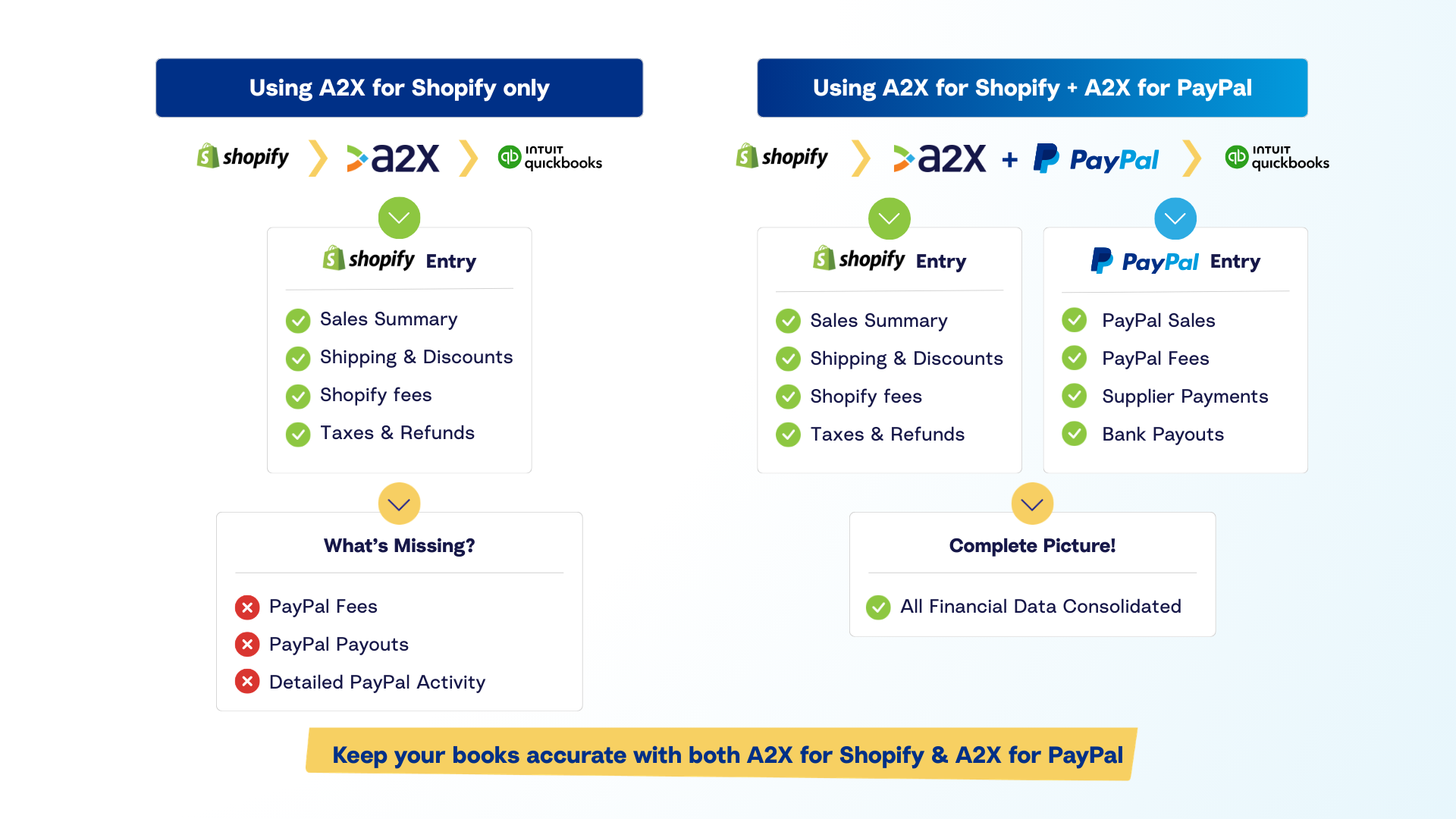
A2X offers separate integrations for Shopify and PayPal, but they’re designed to work together.
- A2X for Shopify pulls in your order-level summaries: sales, shipping income, discounts, Shopify platform fees, taxes, and refunds.
- A2X for PayPal pulls in the payment activity: the amount received from Shopify, PayPal processing fees, refunds sent via PayPal, and the eventual payout to your bank.
If you sell on Shopify and offer PayPal as a payment method, using both A2X integrations is the most accurate way to keep your books clean.
How is A2X different from other ecommerce accounting automation apps?
There are a few other tools that summarize ecommerce or PayPal data for accounting, and they may look similar at first glance. But A2X stands out in a few key ways:
- Accounting-first, not app-first – A2X was built specifically for accountants and bookkeepers, not just to sync data, but to produce clean, accurate, audit-ready entries.
- True daily summaries, not approximations – Some tools summarize data, but not always in a way that aligns with your actual sales dates, payout timings, or general ledger best practices. A2X’s summaries are exact and based on real transaction timestamps.
- Payout-to-bank flow clarity – A2X helps you track the full flow from order, to PayPal receipt, to fees deducted, to bank payout, and posts everything to the right accounts.
- Multi-channel and multi-currency ready – A2X is designed to handle complex use cases, like combining PayPal + Shopify + Amazon in one ledger, including or excluding specific transaction types, or posting entries per currency with FX gains/losses tracked.
- Backed by accountants – A2X is trusted and used by hundreds of ecommerce accounting firms around the world. That community support translates into best-practice workflows, not just transaction syncs.
So while other tools may claim to “summarize” or “reconcile,” A2X is designed to close the loop, giving you books you can rely on, not just transactions you can import.
High-level A2X setup
Getting started with A2X for PayPal is straightforward, and once it’s set up, most of the process runs automatically. Here’s what it involves:
1. Create an A2X for PayPal account. If you have an existing A2X account, you can click the + in the bottom left corner of your screen and select ‘Create new account’. You can then select PayPal from the channel options. If you don’t have an existing A2X account, then you can set up an account by clicking ‘Try A2X for Free’ on a2xaccounting.com. Then select ‘PayPal’ from the list of channels.
2. Connect A2X to QuickBooks Online
Next, authorize A2X to access your QBO account. You’ll select the company file you want A2X to post to.
3. Connect your PayPal account to A2X
Follow the prompts to authorize your PayPal account. You will need to input your Client ID and Client Secret, then click ‘Connect’: You will also be prompted to select your PayPal country and timezone. This allows A2X to import your PayPal transactions and generate daily summaries. For more information about connecting your PayPal account to A2X, see the A2X for PayPal: Connect to your PayPal account to A2X support article.
4. Review and map your accounts
A2X detects all the transaction types coming from PayPal, like sales, fees, refunds, taxes, and more, and prompts you to map each one to an account in your QBO chart of accounts. You can use existing accounts or create new ones. If you already have an A2X for Shopify account, you can map the two in unison. You can use the Assisted Setup and have A2X automatically configure accounts and tax rates for you or you can choose to manually select your own accounts. For more information about mapping your PayPal account, see the A2X for PayPal: Mapping Accounts and Taxes support article. 
5. Preview your first few summaries
A2X will automatically generate a daily journal entry for each day’s PayPal activity. Review the entries to make sure everything is categorized as expected before posting. You can click into each one to see a breakdown of what’s included. We recommend that you compare your balance in A2X to your PayPal summary statement to ensure there is a match and you’re confident with how the data will be posted.
6. Post to QuickBooks (manually or automatically)
Once you’re confident the entries are accurate, you can either post them manually or enable auto-posting to QuickBooks. Each day’s summary will then appear in QBO, categorized and ready for reconciliation. For more information about posting your entries to QuickBooks Online, see the Posting your A2X PayPal Statements to QuickBooks Online or Xero support article.

7. Reconcile to your bank
Match the PayPal-related deposits in your bank feed to the entries posted by A2X. Because the entries are clean and summarized, reconciliation becomes much faster, especially if you’re also using A2X for other channels like Shopify.
Who should use ecommerce accounting automation apps to integrate PayPal and QuickBooks?
Ecommerce accounting software, such as A2X, is for ecommerce businesses that care about accurate accounting, clean reconciliations, and scalable workflows, without overloading QuickBooks with unnecessary detail.
This solution is a great fit if:
- You sell online using Shopify, Amazon, eBay, or another platform, and offer PayPal as a payment method.
- You process more than a few dozen PayPal transactions per month, across one or multiple currencies.
- You want to reconcile payouts to your bank feed cleanly, but don’t need every order, SKU, or customer name inside QuickBooks.
- You’re looking for automation that doesn’t sacrifice accuracy, and a tool that speaks the language of accountants and bookkeepers.
- You care about reporting, tax accuracy, and audit readiness, not just syncing raw data.
A2X is popular because it posts the right level of detail for accounting: clean, categorized daily summaries that match your actual PayPal activity, sales, fees, refunds, taxes, and payouts, and help you reconcile to your bank account with confidence.
For accountants and finance teams, A2X aligns with best practices for accrual accounting. It ensures your general ledger reflects reality, without the guesswork, clutter, or end-of-month investigation common with other integrations.
Option 2: Use a data-sync app (order-level tools)
What is a data-sync app?
A data-sync app connects PayPal to QuickBooks Online by syncing individual transactions, such as orders, payments, and refunds, directly into your general ledger. These tools are typically built to provide order-level detail, which means that each sale, transaction, or customer payment is posted as its own record in QBO.
Some apps offer the option to batch transactions or group orders by day; however, this may not always align with your actual sales dates, payout timings, or general ledger best practices.
Some apps also include inventory sync, SKU-level mapping, and product reporting, making them useful if QuickBooks is the central system for managing stock, COGS, or customer invoices.
Many apps support multiple sales channels (e.g., PayPal + Shopify, Amazon, WooCommerce, etc.), so they’re sometimes marketed as multi-channel ecommerce tools, not just PayPal-specific solutions.
Benefits of using a data-syncing app
- Order-level visibility – Each transaction is posted individually, allowing you to see invoices, SKUs, and customer-level detail directly in QuickBooks.
- Inventory and COGS sync – Some tools update stock levels and cost of goods sold based on your PayPal sales, which is helpful if you manage inventory inside QBO.
- Custom rules and logic – You can sometimes apply routing rules based on order type, product, or customer, which is useful for businesses with complex workflows.
- Multi-channel support – These apps often connect to many different sales channels, so you can connect all of your channels and payment gateways to flow all orders into your accounting software.
Challenges of using a data-syncing app
- Lots of data, less clarity – Posting every transaction can create a noisy QBO ledger, especially for high-volume sellers. It’s easy to lose sight of what actually reconciles to a payout.
- Bank reconciliation is harder – Because orders are posted individually, they won’t always line up with the deposits in your bank feed, making reconciliation more manual.
- Setup can be complex – Configuring rules, mapping products, and aligning inventory systems takes time and often requires support.
- Can be overkill for some businesses – If you just need clean books and don’t track inventory in QBO, this level of detail may be more than you need.
High-level setup for a data-syncing app
1. Install and authorize the app
Choose your preferred tool, then connect your PayPal and QBO accounts. Most use OAuth or direct API access.
2. Configure how transactions post
You may have some choices with how your data is posted; for example, you may need to decide whether transactions post as invoices, sales receipts, or deposits. You may get to choose the frequency (immediate or batch), and configure how fees, shipping, and tax are handled.
3. Map products and SKUs
If you’re syncing inventory, you’ll need to link your products or SKUs to the items in your QBO product list.
4. Testing the data posting
It’s usually recommended to test on a small sample of transactions before enabling a full sync. It would also be worth checking how the data posted for PayPal works in relation to the data posted from Shopify and other channels to ensure there are no duplicates.
5. Monitor and adjust
Keep a close eye on bank reconciliation. You may need to create manual clearing entries or journal adjustments if payout amounts don’t align with synced transactions.
Who should use a data-syncing app to connect PayPal to QuickBooks?
Data-sync apps are best suited for ecommerce businesses and accounting teams that want full order-level detail in QuickBooks, and use QuickBooks as more than just a financial ledger.
This approach is a good fit if:
- You need to see each transaction, SKU, customer, and invoice inside QuickBooks.
- You manage inventory or COGS directly in QBO and want PayPal sales to update your stock levels or product performance.
- You have a low-to-medium transaction volume, where detailed records won’t overwhelm your ledger or reconciliation process.
For accountants and bookkeepers, data-sync tools can offer rich detail, but they also require closer oversight. Because every transaction is posted individually, reconciliation becomes more manual, and it’s easier for errors or duplicates to sneak in, especially when PayPal is used alongside other platforms like Shopify or Amazon.
This option is often chosen when operational detail is the priority (e.g. inventory, customer analytics), even if that means extra time spent reviewing transactions and matching deposits.
Option 3: QuickBooks’ native PayPal connector
What is QuickBooks’ native PayPal connector?
QuickBooks Online includes a built-in PayPal integration, available directly from the QuickBooks App Store or within the Banking tab of QBO. This connector is designed to import PayPal transactions into QuickBooks automatically, with minimal setup and no additional cost to your QuickBooks plan.
The native connector brings in each PayPal transaction individually, including sales, refunds, fees, and expense payments, and attempts to categorize them within your Chart of Accounts. It also matches PayPal transactions to deposits in your bank feed if your PayPal account is linked as a connected bank.
This option is most commonly used by low-volume sellers or service-based businesses who receive occasional payments through PayPal and don’t need detailed mapping or ecommerce-specific workflows.
Benefits of QuickBooks’ native PayPal connector
- Fast setup – No third-party accounts or configuration needed, just connect your PayPal account and start syncing.
- Automatic imports – Sales, refunds, and fees are imported as individual transactions, often appearing in your Banking tab for review and categorization.
- No additional cost – This is a built-in feature of QuickBooks Online, so it’s a budget-friendly option for smaller sellers.
- Sufficient for simple PayPal use cases – If you use PayPal like a digital wallet, for a few sales, subscriptions, or payments, the native connector may be enough.
Challenges with QuickBooks’ native PayPal connector
- Transaction overload – Every sale, refund, and fee is posted separately. For merchants with even moderate volume, this clutters your books and slows reporting.
- Difficult reconciliation – Because PayPal deposits aren’t grouped or summarized, matching them to what lands in your bank account often requires manual effort.
- Limited customization – You can’t set detailed rules or mapping preferences. If PayPal is connected as a bank, it behaves like a bank feed, not an ecommerce integration.
- No separation by platform or category – All PayPal activity is treated the same, whether it came from Shopify, WooCommerce, eBay, or was a personal transfer.
- Minimal reporting context – There’s no support for multi-currency reporting, order-level breakdowns, or separation of fees by type.
High-level setup
1. Find the app in QuickBooks Online
Go to the App Store or QBO’s Banking tab, and search for PayPal. Choose Connect.
2. Authorize PayPal access
Sign in to your PayPal account and give QuickBooks permission to import your transactions.
3. Configure your import preferences
Choose which types of transactions to import, and how far back you want to go. You may also be prompted to map accounts (though customization is limited).
4. Review and categorize imported transactions
Transactions will appear in the Banking tab. From here, you can review, approve, and assign accounts. QuickBooks will try to learn your choices over time.
5. Monitor your bank feed
If your actual PayPal payouts are also hitting your bank feed, make sure you’re not double-counting deposits.
Who should use QuickBooks’ PayPal connector?
QuickBooks’ native PayPal connector is often chosen for one simple reason: it’s built-in, free, and quick to set up. For smaller ecommerce sellers with only a handful of PayPal transactions each month, it can be a convenient way to get basic activity into QuickBooks without adding another tool to the mix.
This approach is a good fit if:
- You use PayPal occasionally, for low-volume sales, services, or subscriptions
- You don’t require ecommerce-specific reporting or reconciliation
- You want to get started quickly without paying for third-party software
- You are comfortable manually reviewing and categorizing transactions in QBO
For accountants and bookkeepers, the native connector can work for simple use cases, but it tends to create challenges at scale. Because every transaction is imported individually, there’s no payout grouping, limited categorization, and no visibility across platforms (e.g. Shopify sales via PayPal).
For clients processing more than a few dozen PayPal transactions per month, or using multiple sales channels, this option often leads to more manual cleanup and reconciliation issues over time. It’s a lightweight solution – not built for ecommerce complexity.
Option 4: Manually enter data from PayPal into QuickBooks
What is manually entering data from PayPal into QuickBooks?
Manual entry is exactly what it sounds like: you download your transaction history or summary reports from PayPal, and then enter the data into QuickBooks Online yourself. This could be as simple as entering one journal entry per month, or as involved as entering each sale, fee, and refund by hand.
It’s most commonly used by very small businesses with limited PayPal activity, or as a temporary workaround while testing or troubleshooting an automated solution.
Benefits of manually entering data from PayPal into QuickBooks
- Free and flexible – You don’t need to pay for any integration tools, just export from PayPal and post what you need to QuickBooks.
- Full control – You decide exactly what gets posted and how it’s categorized. This can be helpful if you’re backdating entries, cleaning up old transactions, or reconciling manually.
- Useful for one-off fixes or historical data – If you only need to account for a few old PayPal payouts, this method may be the quickest path forward.
Challenges with manually entering data from PayPal into QuickBooks
- Time-consuming – Even with copy-paste shortcuts, entering and categorizing transactions manually takes time, especially if you have more than a few each month.
- Error-prone – It’s easy to make mistakes in data entry, misclassify transactions, or forget to post something. There’s no automatic reconciliation between PayPal reports and QBO.
- Not scalable – As your volume grows, manual entry becomes harder to manage, especially if you’re handling multi-currency, tax, or platform-specific payouts.
- Limited reporting – You won’t get consistent breakdowns of sales, fees, taxes, and refunds unless you build your own summaries each time.
High-level setup of how to manually enter data from PayPal into QuickBooks
1. Download your PayPal reports
Go to PayPal’s Activity tab and download either a summary report (e.g. Monthly Financial Summary) or a detailed transaction CSV.
2. Prepare a journal entry or deposit summary
Add up your sales, refunds, shipping, tax, and fees for the period. Create a balanced journal entry in QBO using your Chart of Accounts. We recommend you check with your accountant or bookkeeper before you create manual entries in your accounting software.
3. Post to your PayPal Balance account or a clearing account
If you’re tracking your PayPal balance in QBO, post to a dedicated PayPal Bank or
clearing account. Match this entry to the actual payout when the funds reach your business bank account.
4. Reconcile manually
Review your posted entries against your bank feed or PayPal statements to ensure everything matches.
Who should use manual data entry with PayPal and QuickBooks?
Manual entry, downloading PayPal reports, and entering them into QuickBooks by hand is typically used by very small sellers, businesses just starting out, or accountants cleaning up historical data.
This option makes sense if:
- You’re handling a very low volume of PayPal transactions, just a few per month
- You need to correct or backfill PayPal data for a past period (although A2X can fetch historical data if you want to save yourself some time!)
- You’re testing workflows or setting up a new QuickBooks file, and want full control
- You prefer to review and post every transaction manually, for accuracy or compliance reasons
For accountants and bookkeepers, manual entry offers complete control, which is useful when dealing with messy data, incomplete records, or unique client setups. It also avoids introducing a new app or automation layer before the books are ready.
However, as volume grows, or if you’re managing multiple platforms, currencies, or tax jurisdictions, manual entry quickly becomes time-consuming, error-prone, and hard to scale. It lacks automation, audit consistency, and proper reconciliation support.
For most businesses beyond the startup phase, manual entry is best viewed as a temporary solution or a tool for historical fixes, rather than a long-term strategy.
Regional & tax considerations
How you handle taxes on PayPal transactions, and how PayPal reports them, can vary significantly depending on where you’re located and how you use PayPal in your business.
PayPal may show taxes, but not always in a usable format
PayPal does record tax amounts on sales, but it doesn’t break them down by jurisdiction, which can make it difficult to report correctly if you’re filing sales tax, VAT, or GST in multiple regions. You may see a tax amount in PayPal, but no indication of which state, country, or rate it relates to.
This can cause problems if those amounts are posted incorrectly to income or expense accounts instead of Sales Tax Payable, which is where they should go if you’re using QBO’s Sales Tax Center or reporting taxes externally.
US Sales Tax
If you collect US sales tax through Shopify, WooCommerce, or another connected platform, that tax may be passed through to PayPal, but PayPal won’t allocate it by state or district. You’ll need to rely on the platform where the sale occurred (e.g., Shopify) to report correctly.
UK & EU VAT
If you’re VAT-registered, it’s essential that VAT collected via PayPal is posted to the correct VAT liability account. If you’re selling on marketplaces like eBay or Etsy, they may be collecting and remitting VAT on your behalf, but that’s not always obvious from the PayPal side. You’ll need to review and exclude any marketplace-collected tax from your VAT returns.
Australia & New Zealand GST
In Australia and New Zealand, sales made through PayPal still need to be properly tagged for GST. PayPal won’t report this for you, so your accounting software must be set up to classify these correctly, especially if you’re filing with the ATO or IRD.
Multi-currency tax implications
If you sell in more than one currency, your tax amounts might not convert cleanly when payouts land in your local bank account. A2X helps handle this by posting separate journal entries per currency and recording any realized gains or losses in a Currency Gain/Loss account.
In short, while PayPal does show tax amounts on transactions, it doesn’t provide the jurisdiction-level detail required for accurate reporting in most regions. That means it’s up to your accounting system and your account mappings to handle taxes correctly.
If you’re using QuickBooks’ Sales Tax Center or filing through your local tax authority, it’s important to ensure that taxes are posted to the correct liability account, not income. This is especially important in multi-currency environments, where tax amounts may shift with exchange rates.
A2X can help by separating tax lines and handling currency differences, but it’s always worth checking your regional requirements and consulting your accountant if you’re unsure.
How to test Your PayPal-QuickBooks integration
Whichever integration method you choose, whether it’s A2X, a data-sync app, QuickBooks’ native connector, or even manual entry, it’s worth taking the time to test the setup before relying on it for ongoing bookkeeping.
Here’s how to test your integration to make sure it’s accurate, aligned with your needs, and won’t cause reconciliation problems down the track:
1. Start with a small test window
Choose a short period, for example, one month, and make sure it includes a mix of transaction types, such as sales, refunds, fees, and a bank withdrawal. This gives you a realistic sample to evaluate how the integration handles different data.
2. Turn off auto-posting (if available)
If your integration tool allows it, disable auto-posting at first. This lets you review and approve each entry manually before it appears in QuickBooks, making it easier to spot and correct issues early.
3. Check how transactions are categorized
Look at the entries created and check:
- Are sales, fees, refunds, and tax amounts separated clearly?
- Are they posted to the right accounts?
- Are platform-specific transactions (e.g. Shopify payments via PayPal) handled correctly?
This step is essential for accurate reporting, especially if you need to file taxes or generate platform-specific P&Ls.
4. Compare totals to PayPal reports
Open your PayPal activity report or monthly statement. Do the totals in QuickBooks match what you actually received? If the numbers are off, dig into why, it could be timing, rounding, missing data, currency conversion, or misclassified fees.
5. Follow a transaction from sale to bank deposit
Pick one real order and trace it all the way through:
- Sale → PayPal payment received
- PayPal fee deducted
- PayPal payout sent to your bank
- Entry posted to QuickBooks
Bank deposit matched/reconciled
If you can trace the full journey end to end, and it reconciles cleanly, your integration is working as intended.
6. Does this give me the level of detail I actually need?
This is a great time to reflect. Are you getting:
- Too much detail (cluttered books)?
- Not enough (missing order-level data)?
- Just right (clean summaries, matched to payouts)?
Your ideal setup depends on what you need QuickBooks to be – a financial ledger, an operational record, or both. Testing helps you make that decision with clarity.
7. Don’t skip reconciliation
If the integration posts data to QuickBooks, but it doesn’t help you reconcile to what’s in your bank feed, you’re left with manual cleanup, the very thing you’re trying to avoid. Make sure the tool helps you reconcile deposits (whether directly or through a clearing account).
8. Make adjustments or try another tool
If the integration doesn’t give you clean, accurate results, or it’s too complex for your needs, don’t be afraid to test a different method. It’s better to pivot early than fix messy books later.
How is A2X different from the other integrations from PayPal to QuickBooks?
The key difference with A2X is how it treats PayPal data, and why.
Most native or data-sync integrations post each PayPal transaction individually to QuickBooks: every sale, refund, and fee as its own line. This gives you full detail, but also creates clutter and makes reconciliation much harder.
A2X takes a different approach. Instead of posting transactions, it posts daily financial summaries that reflect your PayPal activity as it appears in reality: grouped by day, categorized by type, and ready to reconcile against your actual payouts.
It’s not about pushing data for the sake of it, it’s about producing accounting entries that match your real-world cash flow, tax obligations, and financial reporting needs.
If your priority is clean books, audit-ready records, and less time spent chasing down mismatches, this approach is hard to beat.
How to Get Started with A2X for PayPal
Once you’ve chosen A2X as your integration method, setting it up with PayPal and QuickBooks Online is straightforward, especially if you’ve already connected other sales channels like Shopify. A2X has a detailed PayPal support section that provides all of the information you need to get set up and running on A2X for PayPal. But here are some considerations to get you started
Decide your switch-over date
You will need to select a date where you will stop using your current method of getting data from PayPal into QBO and start using A2X. Best practice would be to switch over on the first of a month or quarter – that way, the data is clean and there isn’t any duplication or missing data.
You will need to use your current method to reconcile your PayPal Bank Ending Balance with the PayPal Statement up until the switch over date to ensure proper flow and transition of balances.
If your PayPal bank is reconciled up to a certain date, you can choose to delete the PayPal transactions for unreconciled dates and use A2X.
Comparing your PayPal portal to A2X
Once your data has been fetched into A2X, you can compare your PayPal portal to A2X. The A2X for PayPal homepage displays the PayPal Bank Balance for all currencies with non-zero balances.
This information helps you confirm that the PayPal Bank Balance has been reconciled for all currencies with your accounting software.
Ensure the PayPal timezone matches with A2X timezone settings. You may also need to bring in more PayPal history.
Decide how you would like your data to be grouped
Within the Settings, there is the option to enable some groupings for three transaction types:
Suppliers
- No grouping – PayPal payments sent will not be split for each supplier.
- By individual suppliers – PayPal payments sent for each supplier will be split. This is usually done if customers would like to map the supplier directly to an expense account.
Deposits and Credits
- No grouping – All deposits and credits made for the day will be grouped into one transaction.
- Individual transactions – Every single deposit is separated, even if there are multiple transactions in a day.
Withdrawals and Debits
- No grouping – All withdrawals and debits made for the day will be grouped into one transaction.
- Individual transactions – Every single withdrawal is separated, even if there are multiple transactions in a day.
Help when you need it
A2X has an expert Support Team, based around the world, ready to answer your questions when they come up. Plus, onboarding is included on all plans, so you’ll have guidance from the start.
Summary
Connecting PayPal to QuickBooks Online is one of the best things you can do to simplify your ecommerce accounting. But as you’ve seen, not all integrations work the same way, and the right one for you depends on your order volume, reporting needs, and how you use PayPal in your business.
If you want accurate, reconcilable books without clutter, A2X is built for you. It summarizes your PayPal activity daily, separates out fees, refunds, and taxes, and helps you track the full payment journey from order to bank deposit, especially when used alongside Shopify.
If you need order-level detail or inventory tracking inside QuickBooks, a data-sync app might be a better fit, just be prepared for a bit more manual reconciliation.
And if you’re only dealing with a few transactions each month, QuickBooks’ native connector or manual entry might be enough to get by, at least for now.
If you’re unsure which setup is right for your business, your accountant can help, or reach out to A2X support for guidance. We’ve helped thousands of merchants get their PayPal and QuickBooks integration right.
Frequently Asked Questions
FAQs (and answers) about integrating PayPal with QuickBooks Online

ABOUT THE AUTHOR
Amy Crooymans
Amy Crooymans is the Product Marketing Manager at A2X. A member of the A2X team since 2020, Amy brings 10 years of marketing experience to the team and specializes in making complicated ecommerce accounting topics simple to understand. See for yourself in her A2X YouTube videos! Amy works closely …