PayPal to Xero Integration: How to Set It Up for Accounting
Written by: Amy Crooymans
February 18, 2026
For ecommerce businesses, providing flexible payment options is essential. PayPal is a dominant force in this space, used by millions of merchants. However, while PayPal offers convenience for your customers, it often introduces complexity to your Xero dashboard.
Xero is famous for its “beautiful accounting” interface and its seamless bank reconciliation features. But for many ecommerce businesses, PayPal remains the one messy exception to that rule.
If you accept PayPal, particularly in multiple currencies, you have likely encountered the accounting hurdles it creates: trying to reconcile PayPal statements against Shopify sales, disentangling fees from net deposits, and managing thousands of transaction lines.
Integrating PayPal with Xero gives you accurate, reconciled financial data, but only if you choose the right integration method. This guide breaks down your options, what to consider, and how to get your PayPal activity flowing smoothly into Xero.
Key takeaways
- You can connect PayPal to Xero using an ecommerce accounting automation app (like A2X), a transaction-syncing app, Xero’s native PayPal feed, or via manual journal entries.
- A2X summarizes your PayPal activity and posts daily entries that reconcile directly to PayPal’s balance and your bank feed.
- Sync apps offer order-level detail, but can flood your ledger and complicate reconciliation.
- Xero’s native PayPal feed works well for low volume, but has limited categorization and lacks specialized ecommerce functionality.
What are the challenges of reconciling PayPal in Xero?
Reconciling PayPal in Xero isn’t as simple as matching deposits. PayPal activity includes fees, refunds, taxes, currency conversions, and held funds, all of which need to be handled accurately.
Here are some of the most common challenges:
- Currency conversion differences between PayPal balances and payouts, which create realized/unrealized FX gains or losses.
- Duplicate income if you connect both PayPal and another sales channel (e.g., Shopify or Amazon).
- Mismatched timing between sales dates, payment receipts, and bank transfers.
- Taxes are either missing or combined into a single total, with no breakdown by location.
- Disputes, holds, and chargebacks that affect cash flow but don’t always show up clearly in your ledger.
Get a step-by-step guide for reconciling PayPal in Xero here.
Does PayPal integrate with Xero?
Yes, and there are several ways to do it:
- An ecommerce accounting automation app that summarizes your PayPal payouts (such as A2X)
- A transaction-sync app that posts individual transactions (instead of organized summaries)
- Xero’s native PayPal bank feed
The fourth option is the manual route: exporting PayPal statements to Excel and creating your own journals in Xero. While possible, this is typically only sustainable for very low-volume businesses.
Choosing the right path depends on your transaction volume, your need for detail versus clarity, and whether you use PayPal strictly as a payment gateway or as a broader banking platform. You should also weigh the cost of the solution against the time you are willing to spend investigating variances at month-end.
Why integrate PayPal and Xero?
Relying on manual bookkeeping is risky and inefficient. It increases the likelihood of missed fees, incorrect tax coding, and hours spent manually clicking “OK” on hundreds of small transaction lines in Xero. (Discrepancies like these can compound into material errors in your financial statements, creating significant liability during tax season or sales tax audits.)
A proper integration automates the heavy lifting. It ensures sales, fees, and refunds are categorized correctly and that your Xero bank balance matches your actual PayPal balance. This allows for a “clean close” at month-end and gives you confidence that your tax obligations are met.
Signs you might need a better integration for PayPal and Xero
You are likely ready to move beyond basic setups if:
- Your transaction volume exceeds 50-100 transactions per month.
- You dread month-end because PayPal never balances or takes hours.
- Xero is lagging due to thousands of invoice lines.
- You are guessing at FX rates or plugging numbers to make the accounts balance.
- Your accountant is asking for clearer summaries rather than a “shoebox” of digital transactions.
Key considerations before choosing a solution
Ask yourself (and your team) these three questions before choosing the best way to integrate PayPal and Xero for your business:
1. Do you need Xero to be an operational database, or a financial ledger?
Before choosing a tool, decide how granular your data needs to be in Xero. While pushing every single order into Xero (the “operational database” approach) feels comprehensive, high volumes inevitably lead to “data bloat” – slowing down the software and cluttering your reconciliation feed.
Ideally, Xero should act as a financial ledger. By syncing daily summaries rather than individual transactions, you keep your books fast, clean, and easy to reconcile without losing financial accuracy.
Many sellers assume they need every transaction in Xero, but for the sake of speed and clarity, summarized data is often a better option.
2. What’s your tolerance for troubleshooting?
Some tools push data but leave you with unmatched balances that require manual investigation.
3. Which PayPal transaction types do you ned in Xero?
Finally, decide which transaction types you need in Xero, and whether there are any you don’t want to include, then ensure your chosen solution can support these customization requirements.
PayPal and Shopify
It’s very common to use PayPal as a payment method on your Shopify store. But it also creates a unique accounting challenge:
- Shopify and PayPal each handle different parts of the transaction.
- PayPal then receives the funds, deducts processing fees, and holds the net amount in your PayPal account.
- You then receive the funds from PayPal either automatically or manually, sending them to your bank account.
The problem is that these platforms do not communicate. Each holds a different piece of the financial puzzle, and if you import both into Xero without a plan, you will end up double-counting sales and ignoring processing fees.
To avoid a reconciliation nightmare, you cannot treat them as separate feeds; you must treat your PayPal integration as a connecting link between your store’s sales and your bank’s cash.
How do I integrate PayPal with Xero?
First, you need to choose a type of connector. There are four primary ways to connect the two platforms:
- An ecommerce accounting automation app (such as A2X)
- Data sync app
- Xero’s native PayPal Feed
- Manual data entry
Then you will need to connect tools, map categories, test, and reconcile. Below is a breakdown of each of these options.
Option 1: An ecommerce accounting automation app (such as A2X)
What is a PayPal to Xero ecommerce accounting automation app?
A2X is ecommerce accounting software that connects to your PayPal account, imports your transaction data, and creates daily summaries of activity. These summaries are posted to Xero as a single invoice per day, per currency, rather than posting every individual PayPal transaction.
Each line in the invoice is mapped to a specific general ledger account: sales, fees, refunds, taxes, shipping, and more. So instead of trying to reconcile each transaction, you’re matching a clean, categorized summary that reflects your true PayPal activity.
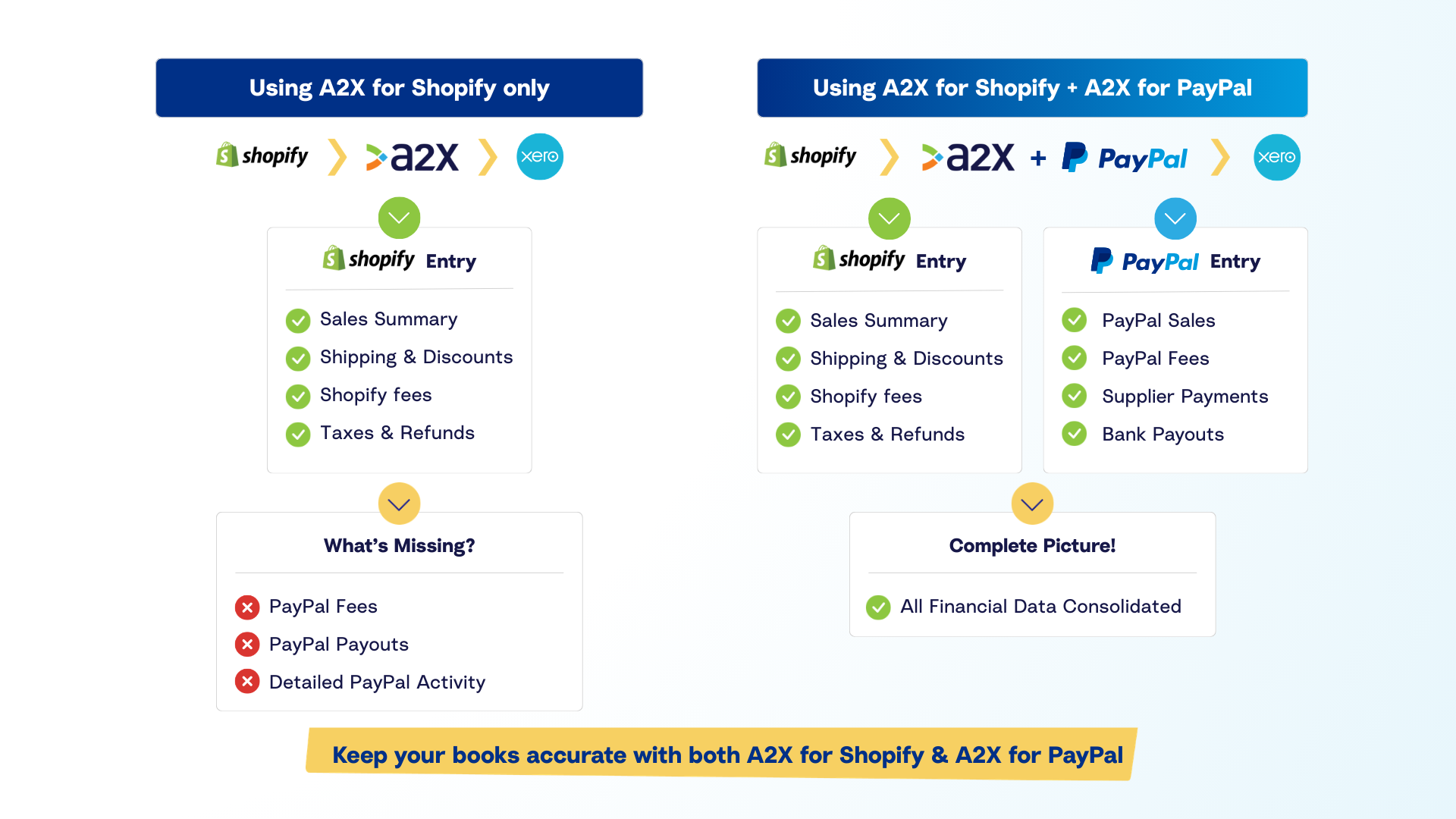
If you use PayPal alongside Shopify, A2X gives you the full picture. You’ll see the summary of your Shopify transactions (including sales, fees, discounts, shipping, and returns), the payment received by PayPal from Shopify, the fees PayPal charged, and the withdrawal from PayPal to your bank account, all clearly separated and posted to the right accounts.
A note on A2X for PayPal: Unlike some other A2X integrations (such as A2X for Shopify or A2X for Amazon), A2X for PayPal does not group transactions by payout. Instead, it creates daily summaries. This gives you a more consistent, time-aligned view of your PayPal activity and a smoother reconciliation workflow, especially when payouts from PayPal happen on an irregular basis.
Benefits of an ecommerce accounting automation app, such as A2X
- Clutter-free Xero – Prevents your ledger from being overwhelmed by thousands of small transactions, keeping the software fast.
- Faster, simpler reconciliation – Because A2X summarizes your PayPal activity (including fund transfers in and out of PayPal), it’s easy to match your records in Xero.
- Unified with Shopify – If you also use A2X for Shopify, the two integrate seamlessly to separate sales data from payment data.
- Multi-currency ready – Automatically handles different currency balances, posting separate journals for USD, AUD, GBP, etc.
- Accountant approved – Delivers the financial accuracy accountants need without the noise of operational data.
Challenges of an ecommerce accounting automation app, such as A2X
- No order-level detail in Xero – A2X is designed for financial reconciliation, ensuring your books match your bank deposits perfectly. To maintain this speed and accuracy, it consolidates transaction data in summaries rather than syncing individual orders. For operational details like SKUs, you can use a specialized inventory or reporting platform.
- Initial configuration – You’ll need to map all PayPal categories (e.g., sales, fees, PayPal shipping income) to your Xero Chart of Accounts. A2X can automate this process for you and provides free onboarding to assist you.
How does Shopify fit in as part of the PayPal to Xero integration with A2X?
A2X offers separate integrations for Shopify and PayPal that work in harmony. A2X for Shopify summarizes the order details, while the A2X for PayPal tracks the payment and fee details.
If you sell on Shopify and offer PayPal as a payment method, using both is the most accurate way to keep your books accurate and get the whole picture.
How is A2X different from other ecommerce accounting automation tools?
There are a few other tools that summarize ecommerce or PayPal data for accounting, and they may look similar at first glance. However, A2X is different in a few critical ways:
- A2X was built specifically for accountants and bookkeepers. It doesn’t just “sync” data, it reconciles, by producing clean, accurate, summarized entries in Xero.
- A2X’s summaries are exact and align with actual sales dates, payout timings, or accrual accounting standards. They’re generated based on real transaction timestamps to ensure your Xero ledger matches reality.
- A2X tracks the complete financial journey, from the initial order to the PayPal receipt, the deduction of fees, and the final bank payout, posting each transaction type to the correct accounts.
- A2X can handle complex scenarios like combining PayPal, Shopify, and Amazon data in one Xero file, and it automatically manages multi-currency entries, tracking FX gains and losses for you.
- A2X is trusted and used by hundreds of ecommerce accounting firms around the world. That community support translates into best-practice workflows, not just transaction syncs.
- As a multi-Xero Award winner, A2X is recognized as the industry standard by both Xero and the global accounting community.
While other apps may claim to “summarize” or “reconcile,” A2X is designed to close the loop, giving you Xero books you can rely on, rather than just a list of imported transactions.
High-level A2X setup
Getting started with A2X for PayPal is straightforward, and once it’s set up, most of the process runs automatically. Here’s what it involves:
1. Create an A2X for PayPal account. If you have an existing A2X account, you can click the + in the bottom left corner of your screen and ‘Create new account’. You can then select PayPal from the channel options. If you don’t have an existing A2X account, then you can set up an account by clicking ‘Try A2X for Free’ on a2xaccounting.com. Then select ‘PayPal’ from the list of channels.

2. Connect A2X to Xero
Next, authorize A2X to access your Xero account. You’ll select the organization you want A2X to post to.
3. Connect your PayPal account to A2X
Follow the prompts to authorize your PayPal account. You will need to input your Client ID and Client Secret, then click ‘Connect’: You will also be prompted to select your PayPal country and timezone. This allows A2X to import your PayPal transactions and generate daily summaries. For more information about connecting your PayPal account to A2X, see the A2X for PayPal: Connect to your PayPal account to A2X support article.
4. Review and map your accounts
A2X detects all the transaction types coming from PayPal, like sales, fees, refunds, taxes, and more, and prompts you to map each one to an account in your Xero chart of accounts. You can use existing accounts or create new ones. If you already have an A2X for Shopify account, you can map the two in unison. You can use the Assisted Setup and have A2X automatically configure accounts and tax rates for you or you can choose to manually select your own accounts. For more information about mapping your PayPal account, see the A2X for PayPal: Mapping Accounts and Taxes support article. 
5. Preview your first few summaries
A2X will automatically generate a daily entry for each day’s PayPal activity. Review the entries to make sure everything is categorized as expected before posting. You can click into each one to see a breakdown of what’s included. We recommend that you compare your balance in A2X to your PayPal summary statement to ensure there is a match and you’re confident with how the data will be posted.

6. Post to Xero (manually or automatically)
Once you’re confident the entries are accurate, you can either post them manually or enable auto-posting to Xero. Each day’s summary will then appear in Xero, categorized and ready for reconciliation. For more information about posting your entries to Xero, see the
Posting your A2X PayPal Statements to QuickBooks Online or Xero support article. 
7. Reconcile to your bank
Match the PayPal-related deposits in your bank feed to the entries posted by A2X. Because the entries are clean and summarized, reconciliation becomes much faster, especially if you’re also using A2X for other channels like Shopify.
Who should use an ecommerce accounting automation app to integrate PayPal and Xero?
Ecommerce accounting automation software, such as A2X, is for ecommerce businesses that care about accurate accounting, clean reconciliations, and scalable workflows, without overloading Xero with unnecessary detail.
This approach is the ideal solution if:
- You are a multi-channel seller using Shopify, Amazon, eBay, or another platform, and offer PayPal as a payment method.
- You are processing more than 50 transactions a month, potentially across varied currencies, and manual entry is no longer viable.
- You want your bank feed to turn green without flooding Xero with thousands of individual invoices, SKUs, or customer contact details.
- You are looking for a system that automates the grunt work but still adheres to strict accounting standards.
- You need accurate Gross Profit and tax figures, not just a data dump of raw transactions.
A2X is widely adopted because it strikes the perfect balance for accounting: it provides summarized daily invoices that capture the full financial picture – sales, fees, refunds, and taxes – without the noise. It ensures that what is in Xero matches the reality of your PayPal statement.
For bookkeepers and accountants, A2X is the preferred choice because it respects accrual accounting principles. It eliminates the month-end “detective work” often required by other integrations, ensuring the general ledger is accurate, tidy, and ready for reporting.
Option 2: Use a transaction-sync app (order-level tools)
What is a data-sync app?
A data-sync app bridges the gap between PayPal and Xero by transferring every single transaction – orders, payments, and refunds – directly into your accounting software. Unlike reconciliation tools that summarize data, these apps focus on granularity, creating a distinct record in Xero for every sale or customer interaction.
While some of these tools provide options to batch transactions or group them daily, these features often lack the precision required to match actual bank payout timings.
Additionally, certain data-sync apps offer features like inventory deduction, SKU mapping, and product-level reporting. This makes them particularly useful if you rely on Xero as your central hub for managing stock levels, Cost of Goods Sold (COGS), or issuing customer invoices.
Since many of these apps integrate with multiple platforms (like Shopify, WooCommerce, and Amazon), they are often marketed as all-in-one ecommerce connectors rather than just PayPal solutions.
Benefits of using a data-syncing app
- Order-level visibility – Because every transaction is imported individually, you can search for specific invoice numbers, products, or customer details directly within your Xero dashboard.
- Inventory and COGS management – If you track stock within Xero, some tools can automatically adjust inventory counts and record costs as PayPal sales occur.
- Flexible logic – You can often configure specific routing rules, such as categorizing transactions differently based on the product type or customer location, which suits complex operational workflows.
- Centralized hub – These tools often serve as a connection point for multiple storefronts, allowing you to funnel orders from all your sales channels and payment gateways into a single accounting system.
Challenges of using a data-syncing app
- Data overload – For high-volume sellers, flooding the general ledger with thousands of individual lines creates “noise”, making reports harder to read and potentially slowing down Xero.
- Reconciliation friction – Matching a single lump sum deposit from PayPal against hundreds of separate invoices in Xero is a manual, time-consuming process.
- Maintenance heavy – Setting up intricate product mappings, aligning inventory counts, and troubleshooting sync errors requires ongoing attention.
- Unnecessary complexity – If your primary goal is clean financial reporting and you don’t manage inventory in Xero, this level of detail is often overkill.
High-level setup for a data-syncing app
1. Install and authorize the app
Choose your preferred tool, then connect your PayPal and Xero accounts. Most use OAuth or direct API access.
2. Configure how transactions post
You may have some choices with how your data is posted; for example, you may need to decide whether transactions post as Invoices, Receive Money transactions, or direct payments. You may get to choose the frequency (immediate or batch), and configure how fees, shipping, and tax are handled.
3. Map products and SKUs
If you’re syncing inventory, you’ll need to link your products or SKUs to the items in your Xero Products and Services list.
4. Testing how the data posts
It’s usually recommended to test on a small sample of transactions before enabling a full sync. It would also be worth checking how the data posted for PayPal works in relation to the data posted from Shopify and other channels to ensure there are no duplicates.
5. Monitor and adjust
Keep a close eye on bank reconciliation. You may need to create manual clearing entries or journal adjustments if payout amounts don’t align with synced transactions.
Who should use a data-syncing app to connect PayPal to Xero?
Data-sync apps are the right choice for ecommerce businesses and accounting professionals who require operational data to live inside Xero, rather than just financial summaries.
Consider this approach if:
- You need the ability to view individual customer names, SKUs, and invoices without leaving Xero.
- You use Xero’s native inventory features and need PayPal sales to drive stock adjustments and COGS.
- Your transaction volume is low to moderate, meaning detailed records won’t clutter your ledger or make reconciliation unmanageable.
For bookkeepers and accountants, these tools provide rich detail but demand closer supervision. Since every transaction enters the books individually, the risk of errors or duplicates increases – especially when PayPal is used in tandem with other platforms. This method is best chosen when operational visibility (such as inventory tracking) is a higher priority than a streamlined, automated bank reconciliation.
Option 3: Xero’s native PayPal feed
What is Xero’s native PayPal feed?
Xero offers a direct bank feed integration with PayPal, accessible via the “Add Bank Account” feature. This connection treats your PayPal account exactly like a standard business checking account, automatically importing your transaction history into the Xero reconciliation screen.
This feed brings in every individual transaction – sales, fees, refunds, and transfers – line by line. Because it functions as a bank feed, Xero will ask you to reconcile each line against a corresponding invoice, bill, or by creating a “Receive Money” or “Spend Money” transaction on the fly.
This option is most frequently utilized by freelancers, service providers, or businesses with very low transaction volumes who use PayPal casually and don’t require specialized ecommerce workflows.
Benefits of Xero’s native PayPal feed
- Seamless accessibility – It is a core feature of Xero, meaning there are no third-party subscriptions or external accounts to manage.
- Automatic data flow – Once connected, transactions flow into your bank reconciliation screen automatically every day.
- Cost-effective – Since it is included with your Xero subscription, it is a budget-friendly choice for early-stage businesses.
- Adequate for simplicity – If your PayPal activity consists of just a few monthly invoices or subscription payments, this direct feed is often sufficient to keep your books up to date.
Challenges with Xero’s native PayPal feed
- Ledger clutter – Every single movement of funds creates a bank line. For a merchant with moderate sales volume, this results in hundreds of lines to reconcile manually, which can rapidly overwhelm your bookkeeping process.
- Reconciliation friction – Unlike a checking account where one deposit matches one invoice, PayPal feeds show gross amounts, fees, and holds separately. Matching these individual lines to your actual sales records often requires significant manual calculation.
- Rigid functionality – You cannot easily apply complex accounting rules or sophisticated mapping logic. It behaves strictly as a bank statement mirror, not an ecommerce integration.
- Lack of context – The feed treats all funds the same. It does not inherently distinguish between a Shopify sale, an eBay payment, or a personal transfer, nor does it provide order-level details or tax breakdowns.
High-level setup for Xero’s PayPal feed
1. Add the account
In the Xero dashboard, go to the “Accounting” menu, select “Bank Accounts,” and click “Add Bank Account.” Search for PayPal.
2. Authorize the connection
You will be redirected to log in to PayPal. Grant Xero permission to access your transaction history.
3. Define the start date
Choose the date from which you want transactions to import. Be careful not to overlap with periods you have already reconciled.
4. Review and reconcile
Transactions will begin appearing in your Bank Reconciliation screen. From here, you must code each line to an account (e.g., Sales, Bank Fees) or match it to an existing invoice.
5. Watch for duplicates
If you also have a separate integration (like a Shopify sync) pushing invoices into Xero, be careful not to double-count revenue when reconciling the PayPal feed lines.
For detailed setup instructions, see Xero’s guide on how to connect Xero to PayPal.
Who should use Xero’s native PayPal feed?
Xero’s native feed is typically selected for one primary reason: it is the default, free option that requires zero external software.
For micro-businesses or consultants who process only a handful of PayPal payments monthly, this is a perfectly valid way to track income without overcomplicating the tech stack.
This approach is a good fit if:
- You use PayPal infrequently (e.g., for occasional client invoices or software subscriptions).
- You do not need detailed ecommerce reporting or gross profit analysis.
- You want to avoid paying for additional integration apps.
- You are comfortable manually coding transactions during your bank reconciliation routine.
For accountants and bookkeepers, the native feed is useful for simple client files but often becomes a bottleneck as a business scales. Because every transaction requires a reconciliation action (“OK”), there is no batching or summarizing. For clients processing more than 50 transactions a month, or those selling across multiple channels, this method often creates more administrative work than it saves. It is best used as a banking tool, not a high-volume ecommerce solution.
Option 4: Manually enter data from PayPal into Xero
What is manual entry from PayPal to Xero?
Manual entry is exactly what it sounds like: taking the data from PayPal and entering it into Xero yourself. This usually involves downloading a CSV file of your monthly activity from PayPal and then uploading it into Xero’s bank interface, or creating a manual journal entry to summarize the month’s activity.
Benefits of manual entry
- Cost: It’s free – You don’t need to pay for any third-party subscriptions.
- Control – You have complete oversight of what enters your books and how it is categorized.
- Good for cleanup – If you have historical gaps or a very short period of data to fix, manual import can be faster than setting up a full integration.
Challenges of manual entry
- Time-consuming – Formatting a PayPal CSV to match Xero’s import requirements can be tedious and repetitive.
- Prone to error – It is easy to miss a fee column, double-count a transfer, or mess up the date format, leading to hours of troubleshooting.
- Hard to scale – As soon as your transaction volume increases, this method becomes unsustainable.
High-level setup for manual CSV import
1. Download from PayPal
Log in to PayPal and download your “Monthly Financial Summary” or a “Transaction Download” CSV for the period you need. Ensure you include all transaction types (payments, deposits, fees).
2. Format the CSV
Xero requires specific column headers to import bank data successfully (typically Date, Amount, Payee, Description, Reference). You may need to manipulate your PayPal CSV – for example, combining “Gross” and “Fee” columns if you want to import net amounts, or ensuring negative numbers are formatted correctly.
3. Import to Xero:
- Go to Accounting > Bank Accounts.
- Find your PayPal account (or add it if it doesn’t exist).
- Click Manage Account > Import a Statement.
- Upload your formatted CSV file.
4. Map the Columns
Xero will ask you to match the columns in your file to the fields in Xero (e.g., map your “Name” column to “Payee”).
5. Review and Complete
Xero will show you a preview. Check for any errors, then click Complete Import. The lines will appear in your bank feed, ready to be reconciled.
Who should use manual entry?
Manual entry is best for businesses that are just starting out, have very low transaction volumes (e.g., less than 20 per month), or need to perform a one-time historical cleanup.
If you are a growing ecommerce business, manual entry is rarely a long-term solution. The time you save on software subscription fees is usually lost to the hours spent formatting spreadsheets and fixing data entry errors. However, for a micro-business or a hobbyist seller, it is a perfectly valid, cost-effective way to keep the books up to date.
Regional & tax considerations
How you manage taxes on PayPal transactions, and how PayPal reports them, can differ drastically depending on your location and business model.
PayPal may show taxes, but rarely in the format Xero needs
While PayPal records the tax amount on a sale, it does not typically break it down by jurisdiction. You might see a lump sum for “Tax,” but no detail indicating which state, country, or specific VAT/GST rate applies. This lack of detail makes reporting difficult if you are filing in multiple regions. If these amounts are just recorded as general income rather than being mapped to a Tax Liability account or assigned a specific Tax Rate in Xero, your sales revenue will be overstated, and your tax reports will be inaccurate.
US Sales Tax
If you collect US sales tax via Shopify, WooCommerce, or BigCommerce, that tax data passes through to PayPal as a total dollar amount. However, PayPal will not split this by state or district. Because Xero relies on you to define tax rates (or use a tool like Avalara), you cannot rely on PayPal data alone. You must depend on the detailed reporting from your ecommerce platform to determine exactly how much you owe to each state.
UK & EU VAT
For VAT-registered businesses, it is critical that VAT collected through PayPal is posted to the correct VAT Liability account so it flows into your VAT Return. If you sell on marketplaces like eBay or Etsy, they may collect and remit VAT on your behalf (Deemed Reseller rules). This is often opaque in the PayPal feed. You need to ensure your integration excludes this marketplace-collected tax so you don’t accidentally pay VAT twice on your return.
Australia & New Zealand GST
In Australia and New Zealand, PayPal sales must be correctly tagged with “GST on Income” to populate your BAS (Australia) or GST Return (New Zealand). Since PayPal doesn’t automatically apply these tax codes, your integration or manual rules in Xero must handle this classification to satisfy the ATO or IRD.
Multi-currency tax implications
Selling in multiple currencies introduces exchange rate complexity. The tax collected in USD or EUR might not convert cleanly to your home currency when the payout hits your bank. A2X solves this by posting separate invoices for each currency and isolating the tax amounts, ensuring that FX differences are captured in a “Realized Currency Gains/Losses” account rather than skewing your tax figures.
In summary, while PayPal captures the total tax amount, it lacks the jurisdictional logic required for precise accounting. It is up to your integration strategy to map these amounts correctly.
If you use Xero’s Tax Rates to generate your Activity Statements or VAT returns, you must ensure that tax collected is posted to a liability account, not revenue. This is particularly vital in multi-currency setups, where exchange rates can cause tax liabilities to drift if not tracked carefully.
Tools like A2X assist by splitting out tax lines and managing currency variance, but you should always verify your setup against local tax rules and consult your accountant to ensure compliance.
How to test your PayPal-Xero integration
Regardless of which method you select, whether it’s A2X, a transactional sync app, Xero’s native feed, or manual CSV uploads, you should never “set and forget” without a trial run.
Here is a step-by-step process to validate your setup and ensure it won’t create a reconciliation nightmare down the road:
1. Start with a small test window
Select a specific, closed timeframe (e.g., one complete month) to test. Ensure this period contains a variety of movements: sales, refunds, merchant fees, and a withdrawal to your bank account. This provides a realistic stress test for the integration.
2. Turn off auto-posting (if available)
If your tool supports an “Auto-Post” feature, leave it disabled during the testing phase. You want the opportunity to inspect and approve every journal or invoice before it hits your Xero ledger.
3. Check how transactions are categorized
Open the entries that have been generated and scrutinize the details:
- Are sales, fees, and tax liabilities split into distinct lines?
- Are they mapped to the correct General Ledger codes in your Chart of Accounts?
- Are cross-platform events (like Shopify sales paid via PayPal) handled without duplicating revenue?
Correct mapping is the foundation of accurate P&L reporting and tax compliance.
4. Compare totals to PayPal reports
Open your “Monthly Financial Summary” in PayPal. Do the totals sitting in Xero match the figures in the report? If there is a variance, investigate immediately. Common culprits include timing differences, currency conversion discrepancies, or fees that haven’t been categorized.
5. Follow a transaction from sale to bank deposit
Pick a single, real-world order and follow its journey:
- Customer pays → Money hits PayPal.
- PayPal deducts the fee.
- Net funds are transferred to your business bank account.
- The check: Does the entry in Xero reflect these steps? Can you match the Xero entry to the bank statement line in your reconciliation screen? If you can trace this path clearly and the bank feed turns green, your integration is solid.
6. Evaluate the level of detail
Take a step back and look at your reports.
- Too noisy? Is your general ledger flooded with so many lines you can’t read it?
- Too vague? Are you missing critical details you need for operations?
- Just right? Do you have clean financial summaries that match your payouts? Your choice depends on whether Xero serves as your financial source of truth or your operational database. Testing helps you confirm if you’ve made the right call.
7. Ensure seamless reconciliation
The ultimate goal is to make the “Reconcile” button in Xero easy to click. If the integration pushes data into Xero but leaves you with unmatched amounts in the bank feed or messy clearing accounts, it isn’t doing its job. Ensure the output matches the cash reality.
8. Iterate or switch
If the results are messy, inaccurate, or require too much manual intervention, don’t hesitate to reset and try a different method. It is far easier to switch tools now than to spend months untangling a corrupted Xero file later.
How is A2X different from other integrations from PayPal to Xero?
The primary distinction lies in how A2X processes PayPal data and why it does it that way.
Most native feeds or data-sync apps operate on a transactional basis: they push every single PayPal sale, refund, and fee into Xero as an individual line item. While this offers granular detail, it often results in a cluttered ledger and a labor-intensive reconciliation process.
A2X takes a fundamentally different approach. Rather than syncing raw transactions, it generates daily financial summaries. These summaries mirror your PayPal activity exactly as it occurred: grouped by day, categorized by type, and formatted to match your actual bank payouts.
The philosophy isn’t just about moving data; it’s about creating accounting entries that align with your real-world cash flow, tax obligations, and financial reporting standards.
If your priority is maintaining a clean, high-performance Xero file with audit-ready records – and spending less time hunting for variances – A2X’s summary-based approach is the industry standard.
How to Get Started with A2X for PayPal
Once you’ve decided that A2X is the right fit for your Xero workflow, the setup process is simple, especially if you are already using A2X for Shopify or Amazon. While the A2X support center offers deep-dive documentation, here are the strategic steps you need to take to ensure a smooth launch.
Decide your switch-over date
You need a clean break between your old method (manual entry or native feed) and your new automated method.
- Best practice – Align your start date with the beginning of a month or financial quarter. This ensures your reports are consistent for the period.
- The transition – Ensure your PayPal bank account in Xero is fully reconciled up to the day before your switch-over date.
- Cleanup – If you have fetched data into Xero for dates after your chosen switch-over point using the old method, delete those unreconciled lines before A2X posts its summaries. This prevents duplicate data.
Comparing your PayPal portal to A2X
A2X provides a dashboard feature that helps you trust the data before you post it.
- The balance check – On the A2X homepage, look at the “PayPal Balance” shown. Compare this figure to the actual balance displayed when you log in to PayPal directly. They should match.
- Currency check – This balance check works for all currencies you hold (USD, GBP, EUR, etc.). It confirms that A2X is seeing the full picture.
- Time zones – Ensure your A2X time zone settings match your PayPal account settings. If they differ, the daily cut-offs won’t align, which can cause small variances at month-end.
Decide how you would like your data grouped
Within the Settings, there is the option to enable some groupings for three transaction types:
Suppliers
- No grouping – PayPal payments sent will not be split for each supplier.
- By individual suppliers – PayPal payments sent for each supplier will be split. This is usually done if customers would like to map the supplier directly to an expense account.
Deposits and Credits
- No grouping – All deposits and credits made for the day will be grouped into one transaction.
- Individual transactions – Every single deposit is separated, even if there are multiple transactions in a day.
Withdrawals and Debits
- No grouping – All withdrawals and debits made for the day will be grouped into one transaction.
- Individual transactions – Every single withdrawal is separated, even if there are multiple transactions in a day.
Help when you need it
You don’t have to figure this out alone. A2X includes onboarding support with every plan, and the global support team is comprised of experts who understand ecommerce accounting. If you get stuck on a mapping question, just ask.
Summary
Integrating PayPal with Xero is one of the highest-leverage moves you can make to streamline your ecommerce bookkeeping. However, as we’ve explored, there is no “one-size-fits-all” connector. The right choice depends entirely on your volume, your need for detail, and your patience for reconciliation.
- If you prioritize financial accuracy and efficiency, A2X is the industry standard. It keeps your Xero ledger tidy by summarizing daily activity, automating tax and fee categorization, and ensuring your bank reconciliation matches reality, especially if you also sell on Shopify.
- If you require granular operational data inside Xero (like individual customer names or inventory deduction), a transactional sync app is likely a better route, provided you are prepared for the increased administrative load.
- If you are a low-volume hobbyist, the native Xero feed or manual CSV uploads are sufficient to get the job done for now.
If you remain unsure about which architecture suits your business stage, consult your accountant or reach out to the A2X support team. We have helped thousands of merchants turn their PayPal headaches into a streamlined, automated workflow.
Frequently Asked Questions
FAQs (and answers) about integrating PayPal with Xero

ABOUT THE AUTHOR
Amy Crooymans
Amy Crooymans is the Product Marketing Manager at A2X. A member of the A2X team since 2020, Amy brings 10 years of marketing experience to the team and specializes in making complicated ecommerce accounting topics simple to understand. See for yourself in her A2X YouTube videos! Amy works closely …