How to Reconcile PayPal Transactions for Your Shopify Store (Using A2X)
Written by: Amy Crooymans
March 23, 2026
If you provide bookkeeping services for Shopify merchants, PayPal is likely already on your radar – it’s consistently the most common payment gateway seen on Shopify stores.
Unlike Shopify’s native payment gateway (Shopify Payments), PayPal operates as its own separate system: Shopify records the sale, but PayPal holds and processes the funds. That split means you have two sides to reconcile – and unlike most gateways where funds flow straight to your bank account, PayPal holds the money in its own wallet. Merchants can then choose when to withdraw, use the balance to pay suppliers, and more, which means there’s a lot more activity to capture than with a typical payment gateway.
This guide breaks down why PayPal reconciliation is a persistent pain point for Shopify sellers and their bookkeepers, explains how A2X for PayPal closes the loop – especially when used alongside A2X for Shopify – and walks you through a clear, repeatable month-end workflow to reconcile every PayPal transaction down to the last cent.
Watch: Get Started with A2X for PayPal
This video walks through the steps required to reconcile PayPal payouts in QuickBooks Online using A2X.
Thank you everyone so much for joining today. So today we've got myself and Nicole and we're going to talk you through exactly how to handle your PayPal accounting for your Shopify store. So I'm Amy Croman, Product Marketing Manager at A2X. I'll be covering the accounting challenge and how our solution works, giving you a bit of background and context into A2X for Shopify and for PayPal and how they work together. And then I'll hand over to Nicole who is our Training Manager and she's going to give you a live demo so you can see A2X for PayPal in action.
Okay, so let's start with the PayPal reconciliation problem. How do you reconcile your PayPal transactions from Shopify? So, you are probably here because you have been experiencing some of this pain and you might know this problem really well. It's one of the main pain points we hear coming through from Shopify merchants and their accountants, and PayPal is the most common payment gateway we see on Shopify stores.
So, let's walk you through exactly what's happening. Here's kind of the likely scenario or the setup: your Shopify store or your client's Shopify store accepts PayPal as a payment method. So, this means you've got payments flowing through at least two systems. You might have other payment gateways on your site as well, but you'll at least have payments coming through Shopify and then also through PayPal, and you need to match these up in your books. Now, what makes it tricky is that Shopify records the sale, but then PayPal is holding and processing those funds. So, you need to reconcile both sides.
Hopefully, you are reconciling them properly. Now, we're going to assume you're doing this right. And we have a lot of content about kind of e-commerce reconciliations in general. So, if you're wanting to get up to speed on those, definitely have a look at some of our other content. But I'm just going to pull out two things that we often see as an approach that's not necessarily the correct approach.
So, we see a lot of sellers that will just record the whole deposit to sales. A PayPal deposit coming into your bank account is not necessarily the same as revenue. There are a lot of other transactions to consider. There might be fees, there might be refunds, there might be actually other transactions as part of that deposit, and those all need to be considered and accurately accounted for. And then the other thing we see is that sellers or their accountants even will create a manual journal entry to account for PayPal. This can be really time-consuming. It's error-prone, and in this age, no one really wants to be doing things like that manually. So, if either of those sound familiar, hopefully you're in the right place and A2X might be able to help you.
So, you might already be using the A2X for Shopify integration. So, that's a really great first step. It means your Shopify reconciliations are taken care of. So, A2X for Shopify will break down those Shopify payouts. They'll break them down accurately. They'll split out the sales, the refunds, the fees, the taxes, and post that really nice, clean, summarized entry through to your accounting software. And so hopefully this will be nice and familiar. And then you'll see the really nice just one-click reconciliation.
But as we've discussed, Shopify isn't the only place that money is moving. So, you still have payment gateways to reconcile, and you still need to reconcile PayPal. So with the A2X for Shopify integration, it does create an entry for all of your payment gateways. The thing with this entry though—if you have a Shopify store, you're using A2X for Shopify and you have PayPal on that store, your A2X for Shopify integration will create a PayPal entry for you. What this does is it posts it through to a clearing account. As you can see in this example here, you can see the entry and you can see that A2X is posting the money that has been collected through to your accounting software.
The problem with this is that A2X for Shopify isn't seeing the fees that are being collected on the PayPal side as well as any other transactions that might occur within PayPal. So, with this setup, you do need to manually create an entry to reconcile those fees and make sure that this clearing account is clearing out. And this is something we hear from sellers—that they'll go into the clearing account and they'll see that it's not balancing out to zero, and that's when they need to create those entries for fees and just make sure that everything's clearing out. So, it's still—as much as Shopify will capture some of that PayPal information—there still is a manual component to this reconciliation part.
Now there are lots of other options you can use for PayPal. I think PayPal has native integrations with both Xero and QuickBooks. And then there's also data syncing tools that you can use to post information from PayPal to your accounting software. For many sellers, these do work really well. But in our experience, when you have any level of scale and you start kind of receiving more payments through PayPal, there are some things that we do hear about these solutions in terms of causing accounting problems.
So the common ones that we see is too much data in your GL. So this might be something you're really familiar with. You see the PayPal integration posting a bunch of entries through to your QuickBooks or Xero. You might be familiar with that manual clicking of "okay" to accept all of those entries that are coming through. The other thing is that with posting a lot of data through the GL, Xero and QuickBooks have upper limits of the number of entries you can be posting through your accounting software. So if you're posting through every single transaction from PayPal, it can cause a bit of lag in your software, especially when you're starting to get a bit of scale and doing a few transactions on PayPal.
So that's one of the problems. It might be that it doesn't capture all of the different transactions from PayPal and it also might not be doing any consolidation. So you might be getting a lot of information coming through—all of the individual entries—and nothing is summarized. We do sometimes see that FX or foreign currency or different currencies within PayPal aren't necessarily handled correctly. Some tools might miss those conversions or the different exchange rates or the different currencies that you have set up in PayPal.
And just in general, there can be a lot of manual work. So if you have an integration that's working or bringing through that data, but you're still having to go in and do a lot of manual changes and create journals, then it's not really the purpose of the integration. So that's one of the reasons why we built A2X for PayPal.
A2X for PayPal closes the loop particularly with Shopify. It works really nicely with A2X for Shopify, but it will also handle any of the payments or any of the transactions that happen on your PayPal. So, you don't necessarily just need to use it with Shopify. It will capture all of your PayPal activity from withdrawals, fees, transfers, and everything else. So, let's take a bit of a closer look at what that looks like.
When a customer pays via PayPal on your Shopify store, A2X for PayPal will capture that payout. It then will split out the fees. This is a really nice big step, I guess, for anyone that's currently manually accounting for those fees. The A2X for PayPal integration will capture that and you can start to see the benefit. Those fees will be split out and then A2X for PayPal will create one summarized entry per currency per day. So if you have multiple currencies or you operate in multiple currencies on your PayPal account, then you will get one entry per day. So that's a really nice summary posted through. So like I say, it's a summary. It's not posting through every single transaction. It's breaking things really nicely down into the currencies to be posted through. You're not ending up with multiple entries and lots of clutter in your GL.
Okay, so let's take a look at what this looks like in practice. So you can see here I've got an example of the A2X for Shopify entry and then the A2X for PayPal entry on the other side. So the A2X for Shopify entry is going to capture all of the transactions that happen on the Shopify side and it's going to split out that portion that is collected by PayPal. So this might be something you're already very familiar with. You can see that that PayPal clearing line gets posted through to a clearing account. Then the A2X for PayPal entry will have that same line to be posted through to a clearing account.
I'll show you the clearing account on the next slide. So those will balance out, but it will also capture any other transactions that occurred on your PayPal account. So you can see here that there was a PayPal movement. So that might have been some withdrawals or PayPal payments that were made. So you can see here really nicely how the two integrations work together.
This is then an example of the clearing account within Xero, but it works the same in QuickBooks. You can see the one entry coming through Shopify and then the deposit coming through from PayPal. And you can see that those two are clearing out really nicely. So, this is a big pain point that it solves. Often when you're talking about accounting integrations and you hear the word "clearing account," sometimes sellers or accountants can start to become a little nervous because it's pretty common to end up with an unexplained balance or a value in that clearing account that needs to be cleared, and it can be kind of like finding a needle in a haystack to try and figure out what those leftover funds are. So this is a really nice benefit of using A2X for PayPal and Shopify together. As you can see, the clearing account actually clears out to zero.
As I said, you don't just have to use A2X for PayPal with Shopify; it will also capture any other transactions that occurred on your PayPal store and PayPal account. So, as you can see here, this one's just capturing any withdrawals or movements coming out of the PayPal bank account. And as you can see, they're broken down by the different currencies.
And then this is just an example of the A2X for PayPal mapping page. So, you can see here all of the different transactions that have been split out. You can see the clearing lines for Shopify, but then you can also see the payments that have been received from PayPal. So, there's kind of multiple use cases for PayPal. You might just be using the PayPal account to accept money from Shopify and that's great, but then you might also be using it to make other payments or receive payments from suppliers. And so A2X will capture all of that information and it will be included in that nice summarized entry that's posted through to your accounting software.
There's some really nice functionality with the PayPal account as well. So, I guess that's something that A2X is really well known for is being able to provide kind of extra detail and customization. So, you have control over what categories are included. So, this is an example here. If you had another way of accounting for some of your deposits, for example, you might just want to exclude those from your A2X for PayPal entry. I would definitely say this with caution because if you do exclude a transaction, then it might put your entry out and it might not necessarily line up. So we kind of say if this is something you're considering, definitely talk to your accountant or even reach out to A2X if you're considering excluding a category because it might be something that gets forgotten and then gets confusing down the track, but there is the functionality there.
And then you also have the opportunity within the settings to split out whether your payments are grouped or by individual supplier. If you're receiving payments from people on PayPal, you have the option to group those all together. Or if you're wanting just individual suppliers, you can split that out in your entry as well. Brilliant. Okay, so that's a bit of context. I'm now going to hand over to Nicole who can go into a bit more detail with the demo.
Hi, I'm Nicole. I'll be showing you guys a demo of the PayPal Shopify integration then. And so to start with, just to add a PayPal account, you can go over here to the left sidebar where we have all of the accounts listed. And then at the bottom here, we have "create a new account." You can click on that and then you can just click PayPal and then it'll bring you to a new account. You can get everything connected.
Once it's all connected to PayPal and your accounting system and the mapping's all done, it'll look like this. So, the standard A2X setup here, but this time we have the latest payouts, the date ranges, and the currencies and their total amount. Today, we're going to be looking at this May 13th to 14th payout. And so, here it is. And then we can open it up and see all the transactions in it. So, here we see the payments received from Shopify going to the clearing account. We can also see those fees, which is great that A2X can see this. Makes that reconciliation easier. And then we see the PayPal movement going to a PayPal bank balance account.
And so that PayPal movement account manages the PayPal bank balance. And so that should match to the PayPal bank balance in your PayPal account at the end of each day. And so we can resend this over to QuickBooks. Normally you wouldn't resend things, but this is our demo account, so it's all good. And so once that's sent, it'll give us a little notification there that it's been sent over. And so we can go right into QuickBooks in the bank balance. And so here we're in the PayPal Shopify clearing account. We can already see that A2X for Shopify sale gateway PayPal amount for that 65.71. We'll just give this a little refresh so we can see that new transaction that came in from PayPal.
Here we go. We have that A2X for PayPal amount of that 65.71. And so those two clearly net off to zero. And so on the accounts and taxes page, all of these transactions are going to a current asset account except for these fee transactions. Those are going directly to a PayPal fee expense account. And then we see some transactions here like any chargebacks, deposits coming into the PayPal bank account. We have the PayPal bank movement account here again, managing the balance. And then we have the PayPal Shopify clearing. Any other payments received or payments sent will come in here to a current asset account. You can choose to break them out if you like too. So that way you could send some of the payments sent directly to their expense account if you're not accounting for those sales or those payments anywhere else.
We also see some transfers here and so those are for, let's say you have two PayPal currencies AUD and USD and you're moving money from one to another. We account for those along with the currency conversion as well. And then if you're withdrawing some money from the PayPal bank account to an actual bank account, we'll bring those in here and then you can match that deposit into your actual bank account to this account and it clears off nice and easy.
And that leads us to our Q&A. So we do have a few questions that have come through. Okay, so this is a specific pricing question. So if my client is on a mini plan for A2X Shopify, will they need to add the PayPal plan? So yes, you will need to add the PayPal plan. In many cases, it might work out to have the A2X for Shopify and PayPal separate, but it might be more cost-effective to consider the A2X multi-channel plan. Multi-channel just means like multiple channels connected. So it means that you'd be able to connect Shopify and PayPal under the same plan. It might be more cost-effective. So if you're not sure, it will come down to the number of connections that you need and your order volume. So again, reach out to our customer success team and they'll be able to have a look at your specific account and recommend the best one.
Okay. So right now, this question looks like it's a bit of a clarification between using the Shopify and PayPal integrations. It says, "Right now, my Shopify entries from A2X show one account for the Shopify PayPal clearing account. What you're saying is that this new subscription will break that into one entry into the PayPal fees and payment. Is that correct?"
Yes, essentially. So, in each individual payout, we'll see the amount that needs to go to the clearing account, that net amount. We'll see the fees and then the bank balance movement. And so, it is one entry, multiple lines that then make sure to clear off that Shopify PayPal clearing account for you automatically. Yeah, it's almost like two pieces to the puzzle, like the Shopify and then the PayPal and everything works really nicely together.
Okay, great. Next question. We have the PayPal account reconciled for Feb already. What is best practice for transitioning? What would you recommend, Nicole?
So, as Amy mentioned, doing a nice clear month-end is usually best. You can reach out to us and every PayPal account comes with a nice onboarding session. So, there's no worry. We'll help you get it set up right away. We'll talk you through the transition period and make sure that we're posting over as of that one date, making sure everything's flowing smoothly. But yeah, it's usually as of end of month we stop using the previous integration and disconnect it and then the first of the next month start using the A2X integration.
Awesome. The next question actually lines up really nicely with that because it says: "Can the A2X integration be switched on with an effective historical or only a future date i.e. an upcoming month end?"
Yeah, good question. So A2X can go back in time and start at a historical date or if you decide you want to bring the data in and then start from a future date, you're welcome to do that as well. With A2X, it's always we bring in the data; it's up to you to decide when you want to start sending things over, whether it's in the past or the future.
Okay, I think that might be all of the questions. But just to reiterate, you can go in and create a free trial account. If you subscribe, you can then get access to free onboarding. So the customer success team will be able to help you get set up or if you have any other questions just reach out to the customer success team. You don't have to have an A2X account to ask some questions. So reach out. Otherwise jump in and have a trial and see how it works for you. Thank you everyone so much for joining the webinar, for attending, and yeah, reach out if you've got any other questions. Otherwise, look forward to seeing how you get on using A2X with PayPal.
What is PayPal?
PayPal is a widely used payment gateway on Shopify stores. It allows customers to pay using their PayPal account balance, linked bank account, or card – without entering payment details directly on the merchant’s site.
When a Shopify merchant enables PayPal as a payment option at checkout, the sale is recorded in Shopify, but the funds are processed and held separately by PayPal. That two-system reality is exactly what makes PayPal reconciliation a persistent challenge for ecommerce bookkeepers.
What accountants and bookkeepers need to know about PayPal on Shopify
- Sales in Shopify, funds in PayPal – Shopify records the transaction, but PayPal holds and processes the funds. Both sides need to be reconciled accurately.
- Fees live in PayPal, not Shopify – PayPal charges processing fees that are not visible in Shopify’s payout data. These must be captured separately.
- Native QBO and Xero connections can bring in too much – Both platforms offer a direct PayPal bank connection, but they import every single transaction individually. Even with bank rules in place, the volume of entries to match and reconcile can become unmanageable at scale.
- Multi-currency complexity – If your client accepts payments in multiple currencies, PayPal can maintain separate balances per currency. Exchange rate differences can arise between PayPal and your accounting software.
- More than just sales – PayPal accounts are often used for more than receiving Shopify payments. Merchants may also use PayPal to make payments to suppliers, receive funds from other sources, or transfer money between currencies. All of this activity needs to be captured.
Why PayPal reconciliation is challenging
Although PayPal is a common payment gateway on Shopify stores, it’s also commonly mishandled in the books.
Here are the two errors we see most often at A2X:
1. Incorrect bookkeeping (e.g., recording the full deposit as revenue)
A PayPal deposit hitting your bank account is not the same as revenue. It may include funds from multiple orders, minus fees, minus refunds – and potentially other transactions entirely unrelated to sales. Recording it all as income gives you inaccurate books.
2. Creating manual journal entries
Some accountants create a manual journal to account for PayPal activity. This is time-consuming, error-prone, and unsustainable at any level of scale.
What about native PayPal integrations?
Both Xero and QuickBooks offer native integrations with PayPal, and there are various data-sync tools available.
These can work adequately for low-volume sellers, but as transaction volumes grow, common problems include:
- Too much data posted to the general ledger, causing clutter or lag in your accounting software (both Xero and QuickBooks have posting limits)
- No consolidation – individual transactions posted instead of summaries
- Multi-currency transactions not handled correctly
- Fees, refunds, or other transaction types missed or miscategorized
- Ongoing manual work to clean up what the integration brings in
How A2X solves the PayPal reconciliation problem
A2X for PayPal is purpose-built to close the loop on PayPal accounting – particularly for Shopify merchants. It captures all activity in your PayPal account and posts a clean, summarized entry to your accounting software so you’re not wading through hundreds of individual transactions.
Whether you’re looking for a PayPal to QuickBooks integration or a PayPal to Xero integration, A2X works with both accounting platforms to automate the entire reconciliation process.
Here’s what A2X for PayPal does:
- Captures every PayPal payout – including payments received, fees, refunds, chargebacks, transfers, and withdrawals
- Splits out PayPal fees – one of the biggest time-savers for anyone currently accounting for fees manually
- Creates one summarized entry per currency, per day – so if you operate in multiple currencies, you get one tidy entry per currency rather than a flood of individual transactions
- Handles multi-currency – including currency conversions when funds are moved between PayPal currency balances
- Captures non-Shopify PayPal activity – supplier payments, incoming transfers, and anything else happening in the PayPal account
You can also customize what’s included – A2X provides the option to:
- Choose whether to group payments by supplier or list them individually (helpful when the PayPal account is used to pay multiple vendors)
- Exclude specific transaction categories from the A2X for PayPal entry
- If you’re considering this, speak to your accountant or reach out to A2X first – excluding a category can cause your entry to go out of balance if not handled carefully
How A2X for Shopify and A2X for PayPal work together
If you’re already using A2X for Shopify, you have the Shopify side of reconciliation covered – sales, refunds, fees, and taxes all post as a clean, summarized entry. But Shopify isn’t the only place money moves. PayPal fees and other PayPal activity aren’t visible in the A2X for Shopify entry, which means a manual component remains.
A2X for PayPal completes the picture. Here’s how the two integrations work in tandem:
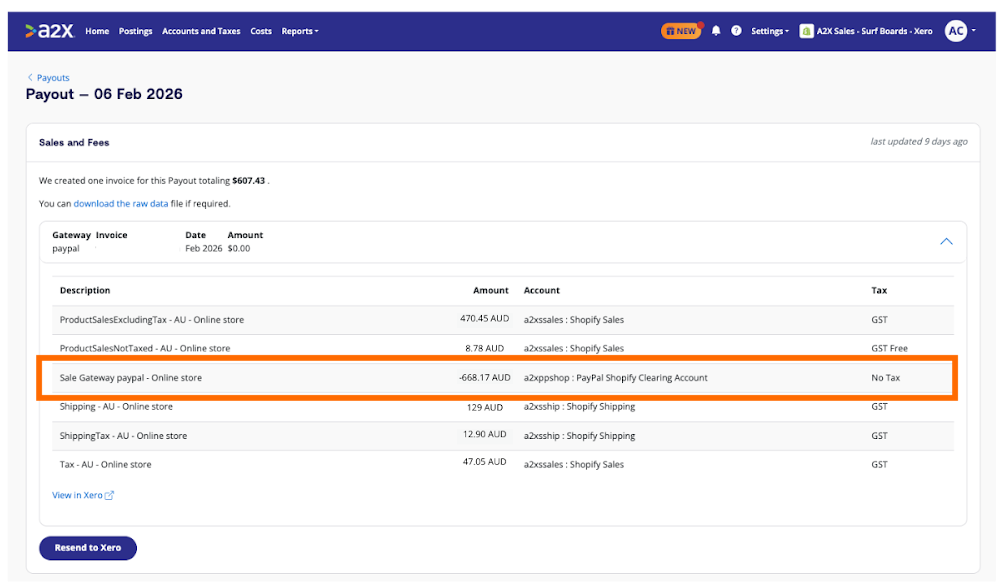
- The A2X for Shopify entry captures all transactions processed through Shopify, including payments collected via PayPal. It posts the PayPal-collected amount to a PayPal Shopify Clearing Account. However, what it doesn’t include is any fees collected by PayPal, so a manual entry is still required to account for these (and to get the clearing account cleared).
- The A2X for PayPal entry posts the matching amount to the same clearing account – along with the PayPal fees, bank balance movements, and any other PayPal activity to their own respective accounts.
The result: the two entries offset each other and the clearing account nets to zero. Every cent is accounted for, fees are split out correctly, and there’s no manual journal required.
This is a significant benefit. Clearing accounts that won’t balance out are a common pain point for Shopify merchants and their bookkeepers – often because fees or other transactions go uncaptured. With A2X for Shopify and A2X for PayPal working together, that problem is eliminated.

How to get started with A2X for PayPal
Getting A2X for PayPal set up is straightforward, and every new subscription includes a free onboarding session with the A2X Customer Success Team to help you get everything configured correctly from day one.
To set up your PayPal account, you’ll first need to:
- Sign up for an A2X for PayPal account
- If you’re new to A2X, click ‘Try A2X for free’ in the top right, then select ‘PayPal’
- If you already use A2X, log in and select ‘+ Create new account’ in the bottom left of your A2X dashboard
- Connect your PayPal account to QuickBooks Online
Then, you’re ready to get set up.
Note: We recommend starting on the first day of a new month for the cleanest transition.
Here’s a brief overview of the three key steps:
1. Connect your PayPal account to A2X
To connect PayPal, you’ll need to retrieve your Client ID and Secret Key from the PayPal Developer Dashboard. In PayPal, navigate to the Developer menu → Apps & Credentials, toggle from Sandbox to Live, and copy your credentials. You’ll then enter these in A2X during the setup flow, along with your PayPal account country and timezone.
For more information, read our full connection guide: Connect your PayPal account to A2X
2. Set up your account mapping
Once connected, you’ll need to map your PayPal transaction categories to the correct accounts in your Chart of Accounts. A2X offers two options:
- Assisted Setup – A2X automatically creates and maps a set of suggested ledger accounts for you. This is the fastest way to get started.
- Custom Setup – You manually select the accounts you want each PayPal transaction category to post to, giving you full control over how things are coded.
The key mapping to get right is the PayPal Shopify Clearing category. This should be mapped to the same clearing account used for the PayPal gateway in your A2X for Shopify settings – that alignment is what allows the two integrations to offset each other and net to zero.
For multi-currency PayPal accounts, A2X will list all currency balances in the PayPal Movement section – each currency should be mapped to a separate account in QBO or Xero.
Here are some helpful guides:
- Mapping accounts and taxes in A2X for PayPal
- Understanding the PayPal Shopify Clearing category
- How to set up your general ledger before posting the first statement
If you’re a business owner or operator and are unsure about any mapping decisions, it’s worth consulting your ecommerce accountant before posting your first statement.
Here’s an example of the A2X Mappings page for PayPal:

3. Adding PayPal to an existing A2X for Shopify account
If your client is already on A2X for Shopify, PayPal can be added as a separate subscription or included under an A2X multi-channel plan (which may be more cost-effective depending on order volume).
Before posting your first PayPal statement, make sure to disable any legacy PayPal bank feed or native integration in QBO or Xero that may have been in use previously. Running two systems simultaneously will result in duplicate entries. The cleanest switchover point is usually the first day of a new month.
Step-by-step: How to reconcile PayPal with A2X
This workflow assumes you are using A2X for Shopify and adding A2X for PayPal to handle the PayPal side of reconciliation.
Before you start:
- Ensure A2X for Shopify is connected and posting entries to your accounting software
- Add the PayPal account in A2X (instructions above) and ensure it’s set up correctly
1. Review the PayPal payout in A2X
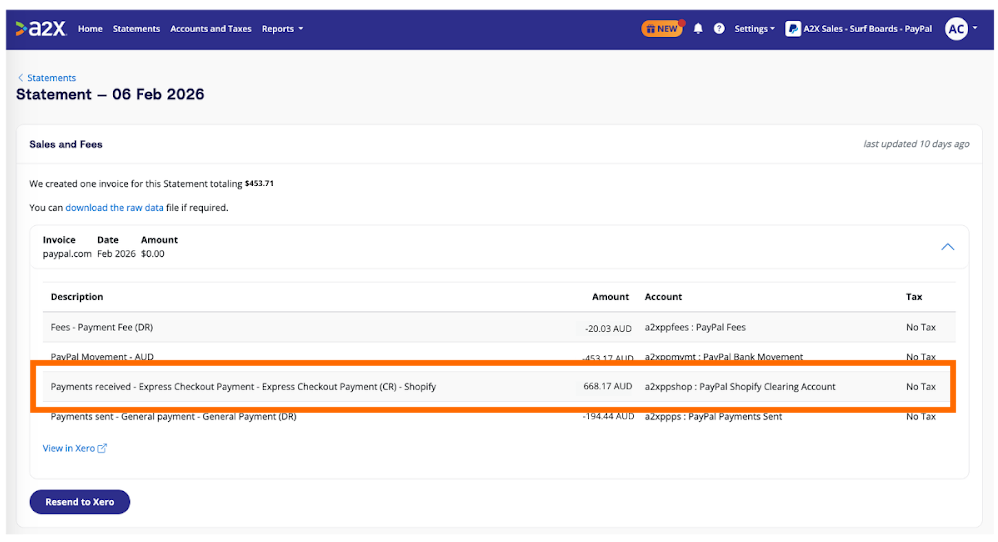
Once connected, A2X will display your PayPal payouts with the date range, currencies, and total amounts. Open a payout to see the transactions it contains:
- Payments received from Shopify
- PayPal fees
- PayPal bank balance movement
- Other transactions (chargebacks, deposits, payments sent/received, transfers between currencies, withdrawals)
Here’s an example of the PayPal journal in A2X:
Here’s an example of the Shopify journal in A2X (if you’re already using A2X for Shopify):
2. Post the A2X for PayPal entry to your accounting software
When you’re satisfied with the mapping, send the entry to QBO or Xero. A2X will post one summarized journal entry (or one per currency, if applicable).
3. Confirm the clearing account nets to zero
In QBO or Xero, open the PayPal Shopify Clearing Account. You should see:
- The amount posted by A2X for Shopify (the PayPal-collected portion of Shopify sales)
- The matching amount posted by A2X for PayPal
These two lines should offset each other, leaving the clearing account balance at $0.00.
Watch how this works in our quick demo of how to reconcile PayPal in QuickBooks Online using A2X:
Hi, I'm Nicole. I'll be showing you guys a demo of the PayPal Shopify integration then. And so to start with, just to add a PayPal account, you can go over here to the left side bar where we have all of the accounts listed. And then at the bottom here, we have create a new account. You can click on that and then you can just click PayPal and then it'll bring you to a new account. You can get everything connected. Once it's all connected to PayPal and your accounting system and the mapping's all done, it'll look like this. So, the standard A2X setup here, but this time we have the latest payouts, the date ranges, and the currencies and their total amount.
Today, we're going to be looking at this May 13th to 14th payout. And so, here it is. And then we can open it up and see all the transactions in it. So here we see the payments received from Shopify going to the clearing account. We can also see those fees which is great that H2X can see this makes that reconciliation easier. And then we see the PayPal movement going to a PayPal bank balance account. And so that PayPal movement account manages the PayPal bank balance. And so that should match to the PayPal bank balance in your PayPal account at the end of each day. And so we can resend this over to QuickBooks.
Normally you would resend things, but this is our demo account, so it's all good. And so once that's sent, it'll give us a little notification there that it's been sent over. And so we can go right into QuickBooks in the bank balance. And so here we're in the PayPal Shopify clearing account. We can already see that Hwax for Shopify sale gateway PayPal amount for that 6571. We'll just give this a little refresh so we can see that new transaction that came in from PayPal. Here we go. We have that HX for PayPal amount of that 6571. And so those two clearly net off to zero.
And so on the accounts and taxes page, all of these transactions are going to a current asset account except for these fee transactions. Those are going directly to a PayPal fee expense account. And then we see some transactions here like any chargebacks, deposits coming into the PayPal bank account. We have the PayPal bank movement account here. Again, managing the balance. And then we have the PayPal Shopify clearing. Any other payments received or payments sent will come in here to a current asset account. You can choose to break them out if you like too. So that way you could send some of the payments sent directly to their expense account if you're not accounting for those sales any or those payments anywhere else.
We also see some transa or transfers here. And so those are for let's say you have two PayPal currencies AUD and USD and you're moving money from one to another. We account for those along with the currency conversion as well. And then if you're withdrawing some money from the PayPal bank account to an actual bank account, we'll bring those in here. And then you can match that deposit from into your actual bank account to this account and it clears off nice and easy.
4. Confirm the PayPal bank balance
The PayPal bank balance movement line in the A2X for PayPal entry should reconcile to the actual balance in your PayPal account at the end of each day.
5. Handle withdrawals
When funds are withdrawn from PayPal to a bank account, A2X for PayPal captures the withdrawal and maps it to your PayPal Withdrawal and Debits Account. In your bank feed, match the incoming deposit to this account to clear it off cleanly.
6. Month-end check
Step | What to check |
✅ A2X for Shopify entries posted | PayPal-collected funds appear in clearing account |
✅ A2X for PayPal entries posted | Clearing account nets to zero; fees are split out |
✅ PayPal bank balance reconciled | Balance matches PayPal account end-of-day balance |
✅ Withdrawals matched in bank feed | Bank deposits matched to PayPal Bank Balance Account |
✅ Multi-currency entries reviewed | One entry per currency per day; FX conversions captured |
✅ Non-Shopify PayPal activity reconciled | Payments sent (e.g. supplier payments) and payments received outside of Shopify orders are mapped to the correct accounts and included in the A2X for PayPal entry |
Frequency: Reconcile PayPal monthly, aligned with your standard bank and credit card reconciliation cadence. Catching discrepancies each month prevents year-end headaches.
PayPal bookkeeping tips
Automate what you can. A2X handles summaries and fee splits; set up bank rules in QBO or Xero to auto-categorize PayPal deposits into the main bank account from PayPal to the PayPal Withdrawals and Debits Account.
Keep the clearing account clean. The PayPal Shopify Clearing Account should return to $0 each month. If it doesn’t, sale, refund, or other transaction has likely gone uncaptured.
Track fees separately. A dedicated PayPal Fee Expense account (rather than a generic Merchant Fees account) makes it easy to review PayPal fee costs over time.
Don’t exclude categories without checking first. A2X for PayPal lets you exclude transaction categories from the entry, but doing so can cause the entry to go out of balance. Always consult your accountant or reach out to A2X before excluding anything.
Plan your start date carefully. If transitioning from another PayPal integration, the cleanest switch point is the first day of a new month. A2X can start from either a historical date or a future date – it’s flexible. Every A2X for PayPal subscription includes an onboarding session, and the team will help you manage the transition.
Troubleshooting PayPal reconciliation
Potential error | Likely cause | Fix |
Clearing account doesn't net to zero | PayPal or A2X for PayPal entry not posted | Check that A2X for PayPal is active and that the fee line is mapped correctly |
PayPal bank balance doesn't match | Not all PayPal activity captured, or withdrawal not matched in bank feed | Review the PayPal bank balance movement lines; match withdrawals in the bank feed |
Duplicate income in general ledger | Bank deposit coded to income instead of as a transfer | Recode as a transfer from the PayPal Bank Balance Account; roid the income entry (if QBO) |
Non-Shopify PayPal transactions missing | Transaction category excluded from A2X mapping | Review the A2X mapping page and ensure all relevant categories are included |
Opening balance in clearing account | Previous integration left a residual balance before transition | Adjust the opening balance; reach out to A2X Support if needed |
Master Shopify & PayPal bookkeeping
For more resources on ecommerce accounting, payment gateway reconciliation, and Shopify bookkeeping best practices, visit the A2X Ecommerce Accounting Hub.
Ready to get started? Try A2X for free – every new PayPal subscription includes a free onboarding session with the A2X Support Team.
Frequently Asked Questions
FAQs about PayPal Reconciliation

ABOUT THE AUTHOR
Amy Crooymans
Amy Crooymans is the Product Marketing Manager at A2X. A member of the A2X team since 2020, Amy brings 10 years of marketing experience to the team and specializes in making complicated ecommerce accounting topics simple to understand. See for yourself in her A2X YouTube videos! Amy works closely …

Integrate Shopify and your accounting software for accurate accounting
A2X auto-categorizes your Shopify sales, fees, taxes, and more into accurate summaries that make reconciliation in your general ledger a breeze.
Try A2X today